Overview
To connect your Aspera products to the Cluster Manager storage, you must use the information found in the Access Keys tab of a cluster in the Cluster Manager console.
The following examples use the example values om the tables below:| Option | Example Value |
|---|---|
| DNS name for available nodes | my-atc.example.com |
| DNS name for all nodes | my-atc-all.example.com |
| Access Key ID |
LckPlcKpMIEXAMPLEKEY |
| Access Key Secret | Y3SApwo2lyrsV018z2T3kAX_AX6iKwtEXAMPLESECRET |
| Access Key Token | TGNrUBxuQXCASPZxOXYGN1ZnaTk6WTFTWHB4bzKsZtNtVkU1bHoyVPN6QChoQUo2aTc3dGVLTmdEXAMPLETOKEN= |
Aspera Faspex
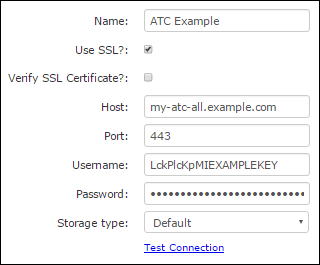
Configure a file storage node with the following information:| Field | Value |
|---|---|
| SSL? | ✓ |
| Host | my-atc-all.example.com |
| Port | 443 |
| Username | LckPlcKpMIEXAMPLEKEY |
| Password | Y3SApwo2lyrsV018z2T3kAX_AX6iKwtEXAMPLESECRET |
| Storage Type | Default |
Aspera Shares
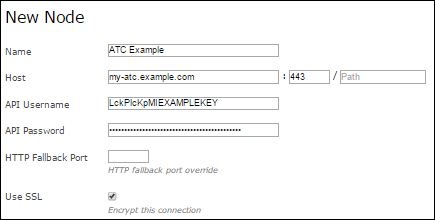
Add a share node with the following information:
| Field | Value |
|---|---|
| Host | my-atc-all.example.com |
| Port | 443 |
| API Username | LckPlcKpMIEXAMPLEKEY |
| API Password | Y3SApwo2lyrsV018z2T3kAX_AX6iKwtEXAMPLESECRET |
| Use SSL | ✓ |
Aspera Enterprise Server / Point-to-Point / Desktop Client
Create a new connection with the following information:| Field | Value |
|---|---|
| Host | my-atc.example.com |
| Username | LckPlcKpMIEXAMPLEKEY |
| Authentication | Y3SApwo2lyrsV018z2T3kAX_AX6iKwtEXAMPLESECRET |
Aspera Drive
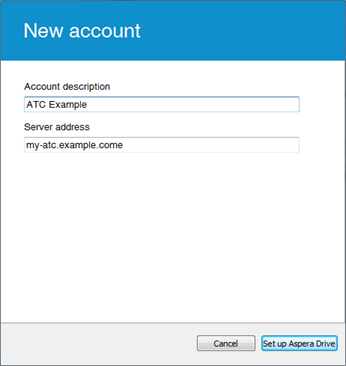
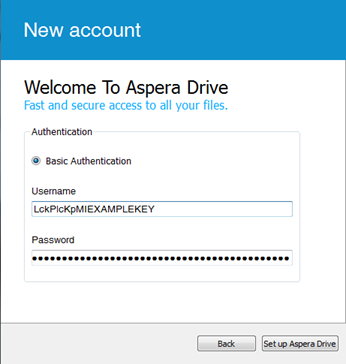
Add a new account to Drive with the following information:| Field | Value |
|---|---|
| Server address | my-atc.example.com |
| Username | LckPlcKpMIEXAMPLEKEY |
| Password | Y3SApwo2lyrsV018z2T3kAX_AX6iKwtEXAMPLEY3SApwo2lyrsV018z2T3kAX_AX6iKwtEXAMPLESECRET |
ascp Command Line
Command-line transfers require the authentication token to be available in an environment variable ASPERA_SCP_TOKEN and uses the xfer user with an SSH key:
ascp -i aspera_tokenauth_id_dsa -W "Basic TOKEN" xfer@my-atc.example.com:/file1 .
Note: This SSH key comes as part of the Aspera Connect Browser Plug-In. It is
located at /opt/aspera/var/aspera_id_dsa.pub on any cluster
node.