A walkthrough of the setup process.
Important:
If this is a product upgrade, ensure that you have
reviewed all prerequisites detailed under the topic "Before Upgrading."
To install Aspera Client, log into your computer with root permissions, and follow the steps below.
-
Install the license
Important: FOR OS X 10.7+: When running Enterprise Server for the first time, you will be prompted to install Java (since OS X 10.7+ does not come with the JRE pre-installed).
If this is a fresh install, an Enter License window appears. Either click Import License File and select the license file, or Paste License Text to copy-and-paste the license file's content. When finished, the license information appears in the window. Verify that it is correct and click Close.
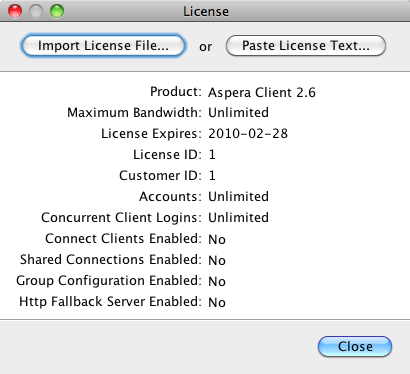
If you are updating your product license after the installation, refer to Updating the Product License.