Content protection is a feature that allows uploaded files be encrypted during a transfer, for the purpose of protecting them while stored on a remote server. The uploader sets a password while uploading the file, and the password is required to decrypt the protected file.
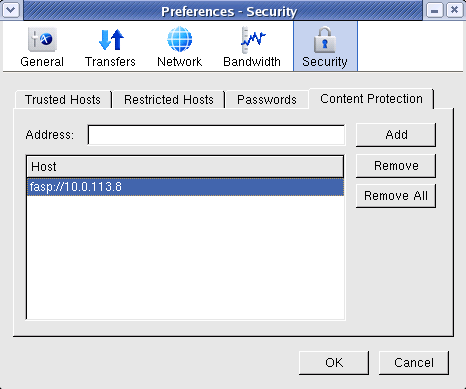
You may enable this feature within Aspera Connect's preferences window ( ). Go to the Security preferences option and click the Content Protection tab. Enter the Connect Server or Faspex Server address in the Address text field and click Add. The server will be added to the Host list.
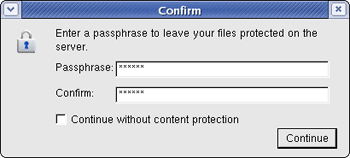
When uploading files to a server that is listed as a content-protected host, a confirmation window will appear and prompt you for a passphrase to encrypt the file. You can enter the passphrase in the text field, or check Leave uploaded files unencrypted to proceed without using this feature. Click OK to start the transfer.
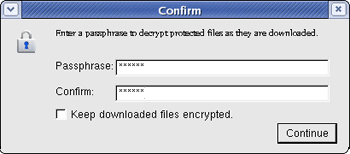
When you attempt to download an encrypted file, you will be prompted to enter the decryption password. To download without decrypting, check Keep downloaded file encrypted.
If you have downloaded the encrypted file without decrypting it first, the downloaded file will have the extension aspera-env (Aspera Security Envelope). To decrypt it, first locate your Aspera Connect application and open up a Terminal window. For example, if Aspera Connect is in /Applications, use the following commands in a Terminal (where you will need to replace highlighted text with your decrypting passphrase, encrypted file and the decrypted file name, respectively):
$ export ASPERA_SCP_FILEPASS=passphrase
$ ~/.aspera/connect/bin/asunprotect \
  ~/Downloads/encrypted-file.aspera-env > ~/output-file