IMPORTANT NOTE: For the Connect auto-installer to work properly, Java must be installed on your system. If you do not have Java installed, or your system doesn't support it, then you can manually download and set up Connect per the instructions below. For Connect to function correctly, you must have cookies enabled within your browser. Please review your browser help for instructions on verifying this setting.
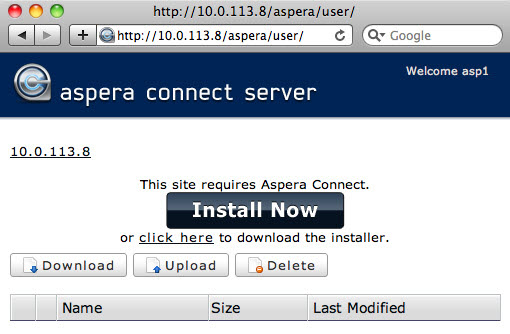
Use your browser to navigate to your organization's Connect Server or Faspex Server website (note that you may need to request this information from your IT Department). Once you have reached the server's website, you will see an Install Now button. Depending on your Operating System and browser, clicking on the Install Now button will either launch the automatic installer or redirect you to the Aspera Connect download page (for manual installation). Follow the on-screen instructions to complete the installation process.
Aspera Connect is installed in different locations on your computer, based on your user account type.
| Install Method | Path |
|---|---|
| Auto-install | Macintosh HD/Users/(Home Directory)/Library/Application Support/Aspera/Aspera Connect |
| Admin manual-install | Macintosh HD/Applications/Aspera Connect |
| Non-admin manual-install | Macintosh HD/Users/(Home Directory)/Aspera Connect |
When an Administrator installs Aspera Connect in the default location, all users on the computer can use the application. When an Administrator installs Aspera Connect in a NON-default location, only the administrator can access it.