The following steps describe (1) how to perform a download test using Aspera's test server and (2) how to initiate a common file transfer using Aspera Connect.
-
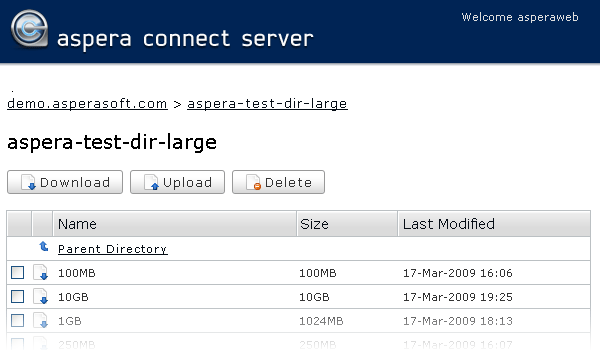
On the Aspera Connect server web page, browse into the folder /aspera-test-dir-large
Click any icon to download the corresponding file or folder. You may also checkmark multiple boxes and click Download to download more than one file or folder at a time.
-
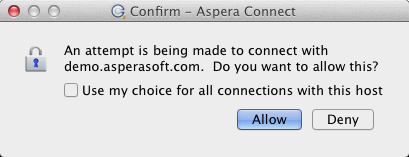
Confirm the transfer.
Select Allow to begin. Enable the Use my choice for all connections with this host checkbox to skip this dialog in the future.
Once you confirm that the configuration settings are correct and that Aspera Connect is working properly, you can begin transferring with your organization's Aspera server. Simply point your browser to your server's address (e.g., http://companyname.com/aspera/user) to get started.
Note that when uploading, you should avoid transferring files with the following characters in the file name:
Characters to avoid: / \ " : ' ? > < & * |