Instructions for installing Aspera Connect on your system.
This topic explains the installation process for Aspera Connect on your system. Connect can be installed on your system via the Web installer or downloadable DMG. Please refer to corresponding the sections below.
- Before performing a system-wide installation (all users of the machine), uninstall any per-user installations. For details, refer to the topic "Uninstalling Aspera Connect."
- Eject all previous Aspera Connect installers before downloading the new installer.
- Quit any open browsers before continuing with the steps below.
For Connect to function correctly, you must have cookies enabled within your browser. Please review your browser help for instructions on verifying this setting.
Aspera Connect Web Installer
Use your browser to navigate to your Aspera Web application (i.e. Faspex Server, Connect Server or Shares). Once you have reached the server's webpage, you will see an Install Now button (or Upgrade Now button if you have an older version of Connect installed on your system). Depending on your Operating System and browser, clicking on this button will either launch the automatic installer or redirect you to the Aspera Connect download page (for manual installation). Follow the on-screen instructions to complete the installation process. If your browser displays a security prompt/warning, click Allow or Continue to proceed.
Aspera Connect Desktop Installer
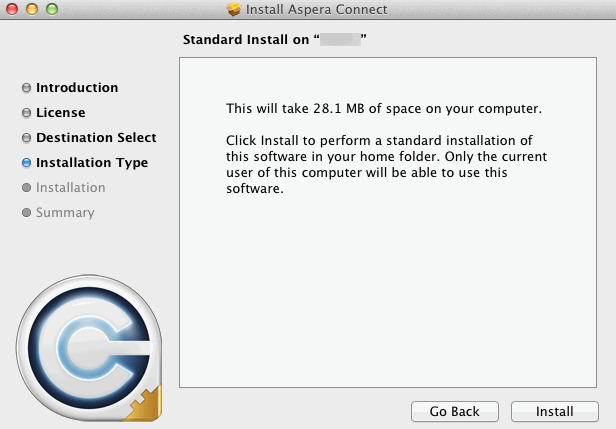
You can download the Aspera Connect DMG directly from http://www.asperasoft.com/download_connect/. Once downloaded, run the installer on your machine. You will need to accept the terms and conditions and click the Install button.
Post Installation
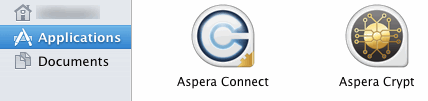
Once Aspera Connect has finish installing, you can access it in the following location: OR
: In addition to the Aspera Connect application being installed, the Aspera decryption utility (Aspera Crypt) is also installed on your system.