This section explains the installation process for the IBM Aspera Connect Browser Plug-in on your system. Connect can be installed on your system through the Web installer or downloadable MSI. See the corresponding sections below.
- You cannot install Connect under the Guest account.
- If you are installing Connect on a Windows 2003 or Windows XP machine, you must upgrade your system to Service Pack 2 (SP2) before proceeding with the installation process.
- Before performing a system-wide installation (all users of the machine), uninstall any per-user installations. Aspera does not support local and system-wide installations of Connect on the same system. For uninstallation instructions, see Uninstalling Connect.
- Quit any open browsers before continuing with the steps below.
The Connect Web Installer
Use your browser to navigate to your Aspera Web application (i.e. IBM Aspera Faspex, IBM Aspera Connect Server or IBM Aspera Shares). Once you have reached the server's Web page, you will see an Install Now button (or Upgrade Now button if you have an older version of Connect installed on your system). Depending on your operating system and browser, clicking on this button will either launch the automatic installer or redirect you to the Connect download page (for manual installation). Follow the on-screen instructions to complete the installation process. If your browser displays a security prompt/warning, click Allow or Continue to proceed.
Note that for the following cases, a non-administrator cannot perform a Web installation because ActiveX controls are not allowed:
- Non-admin XP IE7, IE8
- Non-admin 2003 IE7, IE8
- Non-admin Vista IE7 with UAC off
- Non-admin 2008 IE7 with UAC off
The Connect Desktop Installer
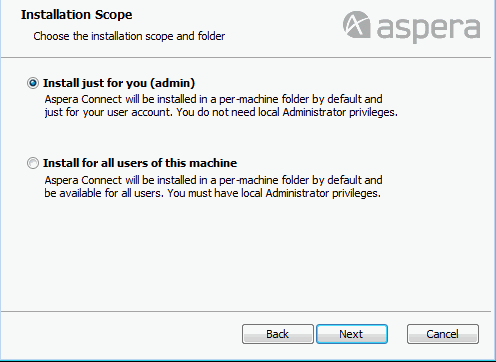
Alternatively, you can download the Connect MSI directly from http://www.asperasoft.com/download_connect/. Once downloaded, run the installer on your machine. You will need to accept the terms and conditions, as well as confirm where Connect should be installed. You can install the application in the standard location by clicking Typical.
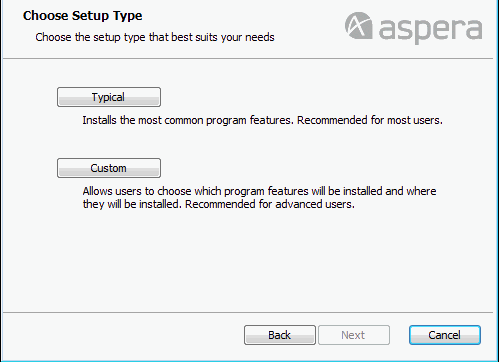
Or select an alternative location.
After Installation
Once Connect has finished installing, you can open it from the following location:
Start Menu > All Programs > Aspera > Aspera Connect