To change the application's default settings before transferring files, launch IBM Aspera Connect Browser Plug-in (Start > All Programs > Aspera > Aspera Connect ) and open Preferences (System Tray > Right-click Aspera Connect > Preferences ).
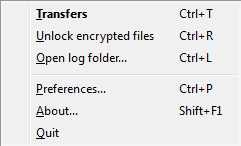
General Preferences
Connect's general application behavior can be configured via the General option.
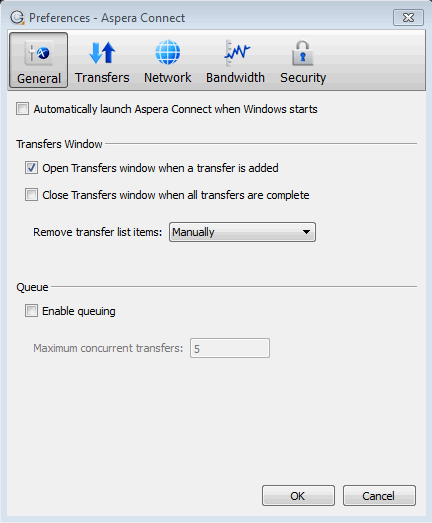
Under the General option, you can modify the following settings:
- Specify whether or not Connect should launch when the user logs into the system (via the checkbox).
- Specify how the Transfers window should behave when a transfer begins and completes (via the checkboxes).
- Specify how transfer list items should be removed from the Transfers window (via the drop-down list).
- Enable or disable transfer queuing via the checkbox (which allows a fixed number of concurrent transfers and places the rest in a queue) and identify the maximum number of concurrent transfers via the text box.
Transfer Preferences
Connect's transfer behavior can be configured under Preferences > Transfers.
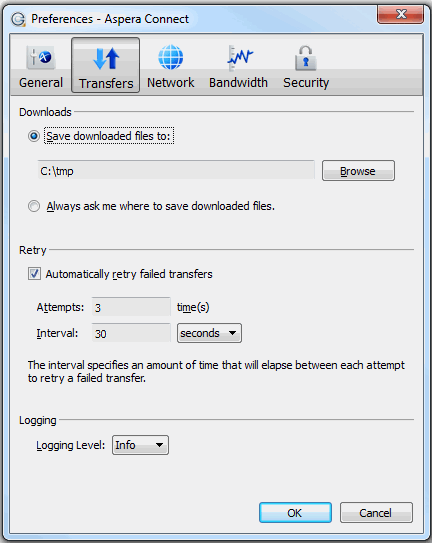
By default, Connect downloads files to the current user's Downloads folder. To change this setting, adjust the following settings:
- Save downloaded files to: Specify the path to save the downloaded files.
- Always ask me where to save downloaded files: Opt to select an ad-hoc location for each download.
You can also set a retry rule if a transfer fails. Set the retry rule within the Retry section as follows:
- Automatically retry failed transfers: Enable or disable.
- Attempts: Specify how many times Connect should attempt to retry the transfer.
- Interval: Specify the amount of time that should elapse between each attempt (in seconds, minutes or hours).
Lastly, you may configure a logging level that can be used to control the logging output when troubleshooting a transfer issue.
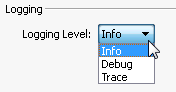
Note that this feature is typically utilized only when contacting Aspera Support. Select from one of the following options:
- Info: Displays general messages about requests, ascp spawn options and transfer status changes.
- Debug: Verbose (i.e., request validation and FASP management messages. -D will also be passed to ascp.
- Trace: Extra verbose. -DD will also be passed to ascp.