Transfer notification emails (which are based on default or customized mail templates) are triggered by three transfer session events: start, completion and error. Follow the instructions below to configure the SMTP server and/or to create/modify your email templates.
-
Configure global mail preferences
IMPORTANT NOTE: To configure global mail preferences, you must have Administrator permissions.
To set up global mail preferences, launch the application with Administrator permissions, and select .
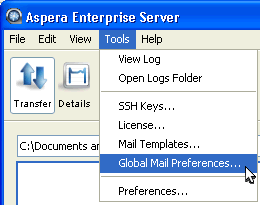
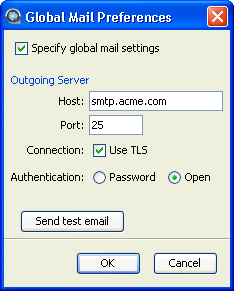
Check the option specify global mail settings and enter outgoing email server information. To ensure that the mail server information is correct, click Send test email and enter an email address to send to.
-
Enable mail notifications
Go to .
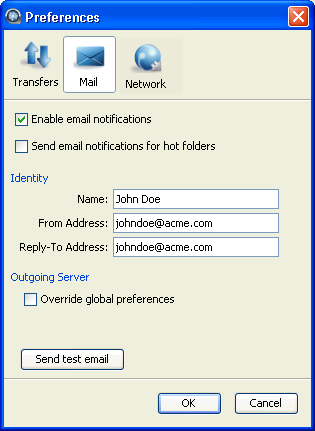
Check the option Enable email notifications and enter your email in Identity section. Check Send email notification for hot folders to use it on Hot Folder transfers. To overwrite the global outgoing email server settings, or if the global settings isn't available, check Override global preferences and enter an outgoing email server's address. Click Send test email to send a test email to the address entered in the Identity section.
-
Bring up the Mail Templates window
Templates are used to generate the content of notification emails. You can associate them with connections, hot folders, and individual transfers. We provide a default template. They can be changed to customize notification emails.
Go to to bring up the mail template window.
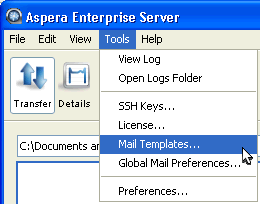
In the Mail Templates window, click
 to create a template based on existing ones, or select an existing template and click
  to edit it.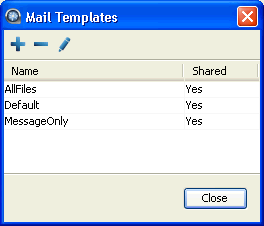
The mail template supports MIME (Multipurpose Internet Mail Extensions) multipart messages that includes both the HTML and plain text versions of the mail body. In the Edit Template window, Enter the template in the specified field:
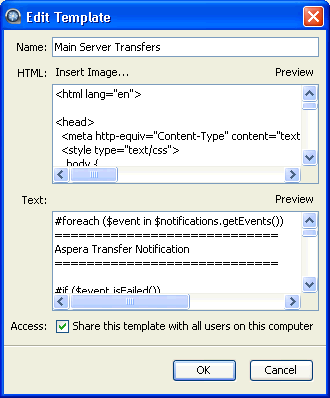
Item Description Name The template name. HTML The HTML mail body. Click Insert Image... to insert an image into the template. The selected image will be copied to the template directory. You may preview the template by clicking Preview. Text The plain text mail body. You may preview the template by clicking Preview. Access Check the option Share this template with all users on this computer to allow other system users to access this template. -
Modify mail templates
Mail templates serve as models for the email that will be sent.
To modify mail templates, go to to bring up the template management window.
The templates are rendered using Apache Velocity (Apache Velocity User Guide). Content is generated for an email according to its template. A conditional statement only generates content if the condition matches. A foreach loop generates content for each iteration of the loop. Within a template, there are two predefined variables:
- $formatter - Contains some utility methods
- $notifications - Holds the transfer notifications
To iterate over notifications, use a foreach loop:
#foreach ($event in $notifications.getEvents())
 ...
#end
This declares a local $event variable that can be used within the for-each loop.
The following conditional statements can be used in the templates:
#if
 ...
#else
 ...
#end
All statements are categorized in four parts: conditional, session information, time, and statistics.
- Conditional
-
Use these tests in an if statement. For example:
#if ($event.isFailed())
 ...
#end
Statement Description $event.isStarted() If the transfer session is started. $event.isCompleted() If the transfer session is completed. $event.isEnded() If the transfer session is ended. $event.isFailed() If the transfer session is failed. - Session Information
-
Statement Description $event.getSourceHost() The source host address. $event.getSourcePaths() The source file path. $event.getDestinationHost() The destination host address. $event.getDestinationPath() The destination file path. $event.getInitiatingHost() The session-initiating host address. $event.getId() The session ID. $event.getName() The session name. $event.getType().getDescription() The session state. Three outputs: "STARTED", "FAILED", and"COMPLETED". $event.getUser() The transfer login. $event.getFiles() The files that are being transferred. Use this statement in a foreach loop: (Any text after ## is a comment) #foreach ($file in $event.getFiles()) ## $file is a new variable visible in this foreach loop. ## $file holds the complete file path and file name. ## $formatter.decodePath() is used to ensure a correct string decoding. $formatter.decodePath($file) #endAnd use the counter $velocityCount in an if statement to limit the output file count. For example, to list only the first ten files:#foreach ($file in $event.getFiles()) #if ($velocityCount > 10) #break #end $file #end
$event.getMessage() The message entered in the notification's "Message" field. $event.getError() The error message. - Time
-
Statement Description $formatter.date(VAR, "LANG", "FORMAT") Formatting the date and time output. Enter three values in the parenthesis: - Replace VAR with the following two statements. E.g. $event.getStartTime()
- Replace the LANG with an abbreviate language name. E.g. en for English.
-
The FORMAT is the display format. Use these symbols:
- yyyy The year. E.g. 2010
- MM Month of the year. E.g. 03
- dd Day of the month. E.g. 28
- HH Hour of the day.
- mm Minute.
- ss Second.
- z Time zone.
- EEE The abbreviated weekday name.
$event.getStartTime() The session start time. $event.getEndTime() The session end time. - Statistics
-
Statement Description $event.getSourceFileCount() The number of source files. $event.getCompletedFileCount() The number of files that successfully transferred. $event.getFailedFileCount() The number of files that failed to transferred. $event.getAverageRatePercentage() The average transfer rate in bps. Enclose this statement with $formatter.formatRate() to simplify the output. $event.getAverageLossPercentage() The average packet loss percentage. $event.getSourceSizeB() The source file size. Enclose this statement with $formatter.toBestUnit() to simplify the output. $event.getTransferredB() The transferred file size. Enclose this statement with $formatter.toBestUnit() to simplify the output. $event.getWrittenB() The destination file size. Enclose this statement with $formatter.toBestUnit() to simplify the output.
When configured, you can apply the notifications to a connection host, or a transfer session. Refer to Using Transfer Notifications.