WARNING: If you have upgraded from 2.7.X to 3.X on Windows, please be aware that user names are now case sensitive.
Your Aspera server uses your system accounts to authenticate connections. These system accounts must be added and configured before attempting an Aspera transfer. When creating transfer accounts, you may also specify user-based settings, including those for bandwidth, document root (docroot) and file handling.
IMPORTANT NOTE: You must create systems accounts for transfer users before they can be configured on your Aspera server. After these system accounts have been created and initialized on your local host, follow the steps below to configure their transfer accounts.
-
Add a system user to your Aspera server.
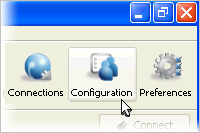
Launch the application () and click Configuration.
Within Server Configuration, select the Users tab and click the
 button.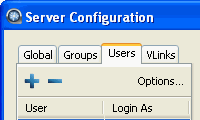
-
Enter user's name and optional domain, and set login requirement.
Within the "Add User" box, input the user's name and optional domain, then click OK. Note that for domain users, you can set a requirement that they must log into their accounts using the DOMAIN\username format (which is also recommended by Aspera). To set this requirement, click the Options... button under the Users tab in the Server Configuration window. Enable the checkbox to set the requirement for new users and/or click the Convert existing users... button to set the requirement for existing domain accounts.
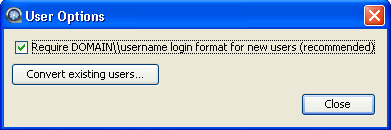
IMPORTANT NOTE: You cannot add a username with an "@" symbol, except when using the "user@domain" format. For additional information, please view the topic "Product Limitations."
-
Set up user's docroot.
You may limit the user's access to a given directory using the Document Root (docroot). To set it up, click , check the Override box for Absolute Path and enter or select an existing path as the user's docroot (E.g. C:\sandbox\asp1 ). Make sure that at least the Read Allowed and Browse Allowed have the value true. Click OK or Apply when finished.
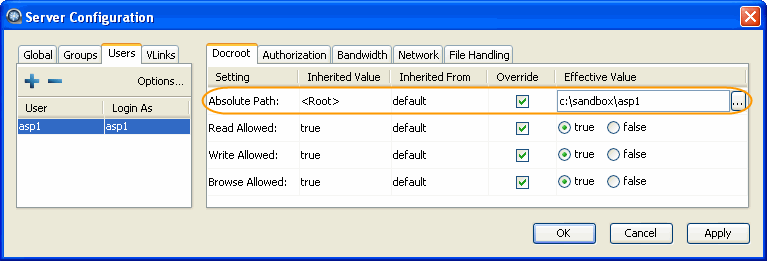
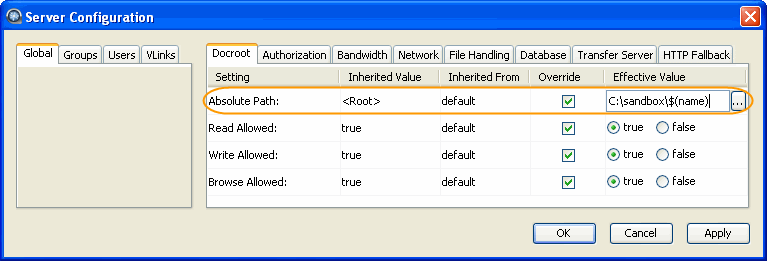
If there is a pattern in the docroot of each user, for example, C:\sandbox\"user name" , you can take advantage of the substitutional string. By using the substitutional string, you can assign independent docroot to each user by setting only the global docroot, instead of adding docroot for each user.
Substitutional String Definition Example $(name) The system user's name. C:\sandbox\$(name) $(DOMAIN) The domain user's domain name. C:\sandbox\$(DOMAIN)\$(name) To set up docroot with the substitutional string, in the Configuration window, select Global and the Docroot tab, and enter the docroot into the Absolute Path field. When added, this value will be duplicated onto all the users' settings.
IMPORTANT SECURITY NOTE: To prevent domain users from being able to access and view the global docroot directory, override the system's default settings and set "Read Allowed," "Write Allowed" and "Browse Allowed" to FALSE.