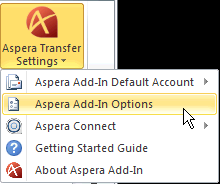
This topic explains how to configure the Aspera Add-in attachment size and download location settings. Start by opening Microsoft Outlook and selecting .
Figure 1. Outlook 2007
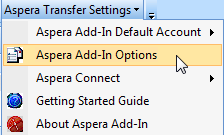
Figure 2. Outlook 2010
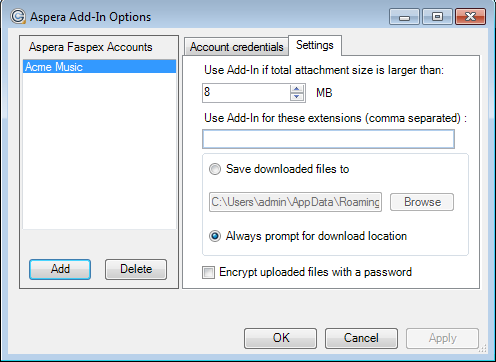
To configure your Aspera Add-in settings, first select the account that you wish to configure settings for, and then click the Settings tab.
| Field | Description |
|---|---|
| Use Add-In if total attachment size is larger than (MB) | The total file attachment size must exceed this threshold (in Megabytes) in order for it to be sent through Faspex. Note that folder attachments will bypass the threshold and will always be sent through Faspex. |
| Use Add-in for these extensions (comma separated) | Enter file extensions (separated by commas) that will, by default, be sent through Faspex. For example, enter "zip" to send all zip files through Faspex. |
| Save downloaded files to | Save downloaded packages (via Microsoft Outlook) to the specified folder. |
| Always prompt for download location | Request to be prompted for the download location. |
| Encrypt uploaded files with a password | When this checkbox is marked, attachments are encrypted with a password on upload for content protection, regardless of the settings on Faspex or Connect. A recipient is then required to input that passphrase when downloading and decrypting the protected files. |
Click the OK button when finished.