Monitoring Transfers
After you click Send, Microsoft Outlook connects to your configured Faspex transfer server and attempts to transfer your package. As the package is transferring, the Transfers window appears. (You can also open it by going to Aspera Transfer Settings > Aspera Connect > Transfers.)
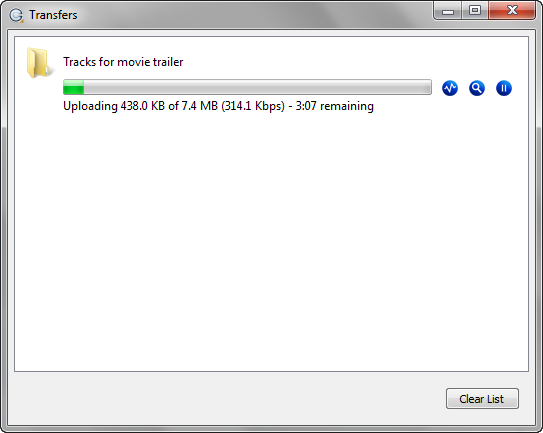
The Transfers window contains the following items:
 Open the Transfer Monitor.
 Open the folder on your computer that contains this content.
 Pause the transfer session (note that this icon appears after the transfer
has started).
Pause the transfer session (note that this icon appears after the transfer
has started). Resume a paused transfer.
 Resume a canceled transfer.
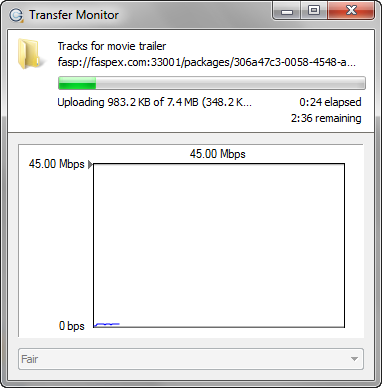
After clicking the Transfer Monitor button (), a
detailed view of the transfer progress appears, along with a line graph representing
the transfer speed over time.