Account Settings
This section explains how to configure the Aspera Add-in's settings for attachment size and download location.
Your system administrator may have pre-configured your settings, and may have locked the fields shown below for editing. If the fields have been locked, you cannot modify them from this screen. Contact your administrator for assistance.
-
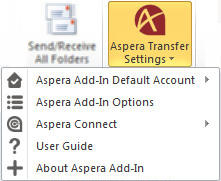
In Microsoft Outlook, select Aspera Transfer Settings > Aspera Add-In Options.
Figure: Outlook 2007
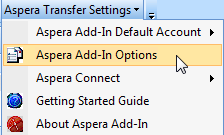
Figure: Outlook 2010
-
Click the Settings tab.
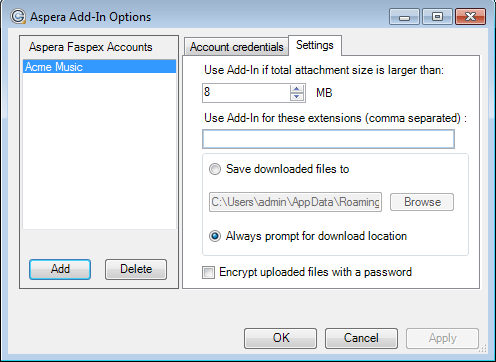
Field Description Use Add-In if total attachment size is larger than The total file attachment size must exceed this threshold (in Megabytes) in order for it to be sent through Faspex. Note that folder attachments will bypass the threshold and will always be sent through Faspex. Use Add-In for these extensions (comma separated) Enter file extensions (separated by commas) that will by default be sent through Faspex. For example, enter .zip to send all zipfiles through Faspex. Save downloaded files to Enter or browse to a folder where downloaded packages should be saved. Always prompt for download location Request to be prompted for the download location. Encrypt uploaded files with a password When this checkbox is marked, attachments are encrypted with a passphrase on upload, regardless of the settings in Faspex or Connect. The recipient must then enter that passphrase when downloading and decrypting the protected files.