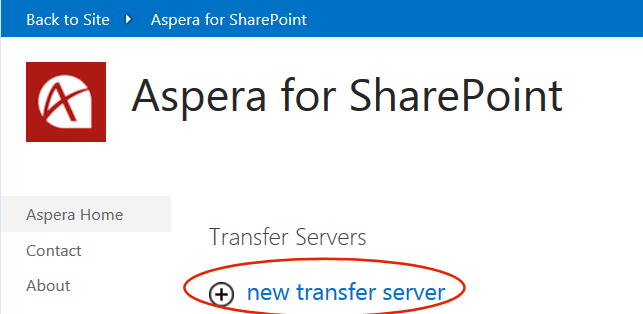
- In SharePoint, go to Site Contents > Aspera for SharePoint.
-
Under Transfer Servers, click new transfer
server
The Create form appears: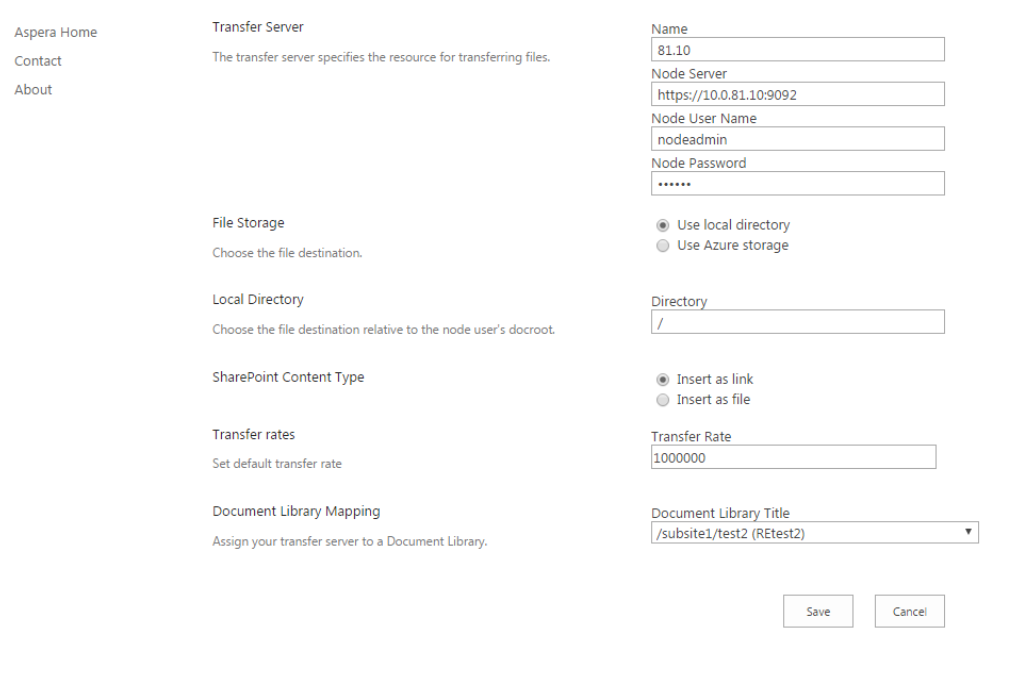
-
Type the values for the following fields:
Area Field Description Transfer Server Name The name of the node you are mapping to. Node Server The IP and port number for this node. Node User Name The username for this node. You can obtain this information from the IT administrator or other team member who installed and configured the Aspera transfer server.
Node Password The password for this node. You can obtain this information from the IT administrator or other team member who installed and configured the Aspera transfer server.
File Storage Use local directory or
Use Azure storage
Select a storage destination for your content: either a local directory or cloud storage. By default, Use local directory is selected.
Local Directory This area is displayed if File Storage above is set to Use local directory.
Directory The relative path from docroot to the directory where your content will be stored. Microsoft Azure Account This area is displayed if File Storage above is set to Use Azure storage.
Storage Account The name of the Azure storage account. Access Key The key for the Azure storage account. Path The relative path to the storage location. Transfer Reporting URL The URL for transfer reporting. SharePoint Content Type Insert as link or
Insert as file
Choose whether to add your content as a small-footprint link to a location on the Aspera transfer server, or as a regular file in the SharePoint content database. Transfer Rates Transfer Rate Set the maximum transfer rate, in Mbps. Document Library Mapping Document Library Title Select the Document Library that you want to map to this node.
Once the mapping has been created, your Transfer Servers list will have a new entry reflecting this mapping.