Shares Drop-down List
Once you have logged into the application, you will see all shares that you have permission access listed on your Home page.
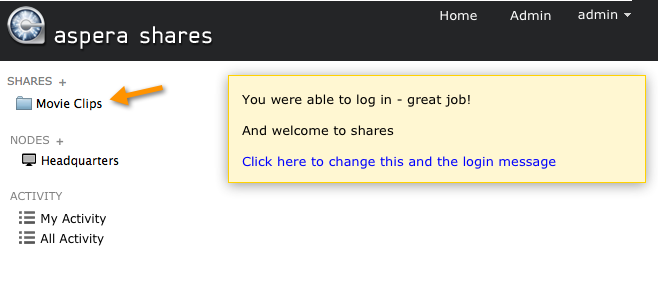
From here, you can perform multiple actions.
- Click the share's name to browse files on the share.
- Use the drop-down menu to the right of the share name to browse, view activity, make comments, and choose notification options.
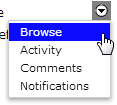
These drop-down options are described in detail below.
| Function | Description |
|---|---|
| Browse share | See "Browsing a Share," below. |
| Activity | Select Activity from the drop-down list to the right of the share's name. You will see a list of all activity that has occurred on the selected share. You may also search for activity based on tagged events or a date range. |
| Comments | Select Comments from the drop-down list to the right of the share's name. You will see any comments that have been made about the share. You can also add your own comments. |
| Notifications | Select Notifications to choose to be notified when new content has been added to your share. |
Browsing a Share
When you browse a share, you will be able to see all files/directories within that share.
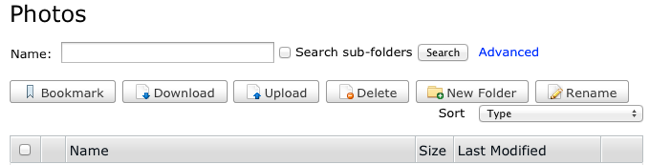
You can also search for a directory name (using simple or advanced search) and sort the directory list. The following buttons enable you to perform actions on a directory or directories:
IMPORTANT NOTE: As a user, you may or may not see all the buttons listed below. You will only see buttons that you have permissions to access. If you believe that you have restricted access in error, please contact your system administrator.
- Bookmark: Create a shortcut to the selected (checkmarked) directory. If you do not check any directory, then the bookmark will be the share's root directory.
- Download: Download the selected (checkmarked) directory or directories using the Aspera Connect browser plugin.
- Upload: Upload a file or folder from another machine to this share using the Aspera Connect browser plugin.
- Delete: Delete the selected (checkmarked) directory or directories.
- New Folder: Create a new directory on the share.
- Rename: Rename an existing directory on the share.