Follow the steps below to set up a remote transfer-server node for IBM Aspera Shares.
-
Configure aspera.conf.
Add the shares package directory as a docroot in aspera.conf. The aspera.conf file can be found in the following location:
OS Version File Location 32-bit Windows C:\Program Files\Aspera\Enterprise Server\etc\aspera.conf 64-bit Windows C:\Program Files (x86)\Aspera\Enterprise Server\etc\aspera.conf Below is a typical Shares aspera.conf file. Yours may differ, particularly if you have installed other Aspera products. Modify the following, as necessary:
- In the file below, look for the <absolute> tag to see how the docroot has been defined in this installation, and adjust yours accordingly.
- Look for the <server_name> tag below, and ensure that SERVER_IP_OR_NAME has been replaced with the name or IP address of your server.
- In the <central_server> section, set <persistent_store> to enable as shown below. Shares 3.5+ requires persistent storage to be enabled. By default, <persistent_store> is disabled (not set).
<?xml version='1.0' encoding='UTF-8'?>
<CONF version="2">

<central_server>
  <address>127.0.0.1</address>
  <port>40001</port>
  <compact_on_startup>enable</compact_on_startup>
  <persistent_store>enable</persistent_store>
  <persistent_store_on_error>ignore</persistent_store_on_error>
  <persistent_store_max_age>86400</persistent_store_max_age>
  <event_buffer_overrun>block</event_buffer_overrun>
</central_server>
<default>
  <file_system>
    <pre_calculate_job_size>yes</pre_calculate_job_size>
  </file_system>
</default>
<aaa>
  <realms>
    <realm>
      <users>
        <user>
          <name>shares</name>
          <file_system>
            <access>
              <paths>
                <path>
                  <absolute>C:\shares_packages</absolute>
                  <show_as>/</show_as>
                  <dir_allowed>true</dir_allowed>
                </path>
              </paths>
            </access>
            <directory_create_mode>770</directory_create_mode>
            <file_create_mode>660</file_create_mode>
          </file_system>
          <authorization>
            <transfer>
              <in>
                <value>token</value>
              </in>
              <out>
                <value>token</value>
              </out>
            </transfer>
            <token>
              <encryption_key>af208360-dbdd-4033-a35b-2370941f37e9</encryption_key>
            </token>
          </authorization>
        </user>
      </users>
    </realm>
  </realms>
</aaa>
<http_server>
  <http_port>8080</http_port>
  <enable_http>1</enable_http>
  <https_port>8443</https_port>
  <enable_https>1</enable_https>
</http_server>
<server>
  <server_name>SERVER_IP_OR_NAME</server_name>
</server>
</CONF>
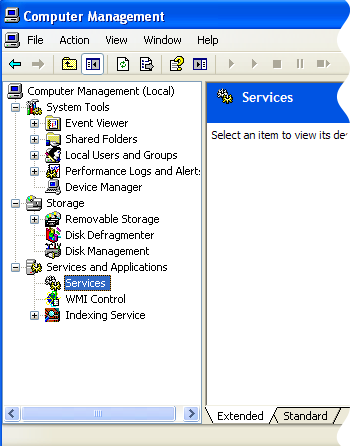
After modifying aspera.conf, restart Aspera Central and Aspera NodeD services.
You can restart these services from the Windows Computer Management window, accessible from .
-
Add the shares user to your Aspera server.
Launch the Enterprise Server application () and click Configuration.
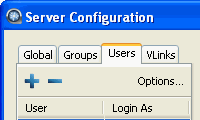
Within Server Configuration, select the Users tab and click the
 button.