Capabilities
When files are uploaded from an Aspera client to the server, server-side encryption-at-rest (EAR) saves files on disk in an encrypted state. When downloaded from the server, server-side EAR first decrypts files automatically, and then the transferred files are written to the client's disk in an unencrypted state. Server-side EAR provides the following advantages:
Limitations and Considerations
Server-side EAR is not designed for cases where files need to move in an encrypted state between multiple computers. For that purpose, client-side EAR is more suitable: files are encrypted when they first leave the client, then stay encrypted as they move between other computers, and are decrypted when they reach the final destination and the passphrase is available.
Do not mix server-side EAR and non-EAR transfers. Doing so can cause problems for clients by overwriting files when downloading or uploading.
Server-side EAR does not work with multi-session transfers (using ascp -C or node API multi_session set to greater than 1).
Configuring Server-side EAR
- Set the docroot in URI format.
Server-side EAR requires the storage to have a docroot in URI format. That is, the docroot path must be prefixed with file:///. Note that the third slash ( / ) does not serve as the root slash for an absolute path. In other words, a docroot of /home/xfer would be set as file:////home/xfer and a docroot of C:\Users\xfer would be set as file:///C:\Users\xfer. Set the docroot by modifying aspera.conf, found in the following location:
C:\Program Files [(x86)]\Aspera\product\etc\aspera.conf
For each transfer user, add a docroot (or convert an existing docroot to URI format). All transfer users are configured in the <users> section. The following is an example of an entry for one user, asp1:<user> <name>asp1</name> ... <file_system> <access> <paths> <path> <absolute>file:////Users/testing/Public</absolute> </path> </paths> </access> </file_system> ... </user>The docroot can also be set for all users (globally, in the <default> section) or for groups.
Important: The docroot in URI format cannot be set from the GUI or with asconfigurator. - Set the password.The server-side EAR password can be set for all users (global), per group, or per user in any of the following three ways:
- by editing aspera.conf directly
- by running asconfigurator (which modifies aspera.conf)
- by setting it from the GUI (also modifies aspera.conf)
- Modifying aspera.conf directly or with
asconfigurator
In the server's aspera.conf file, enter the following for the default (global) encryption settings:
<default>
  <transfer>
    <encryption>
      <content_protection_secret>passphrase</content_protection_secret>
    </encryption>
  </transfer>
  ...
</default>
Encryption settings can be configured similarly per group and per user. The following example shows the settings for user asp1:
<user>
  <name>asp1</name>
    <transfer>
      <encryption>
        <content_protection_secret>passphrase</content_protection_secret>
      </encryption>
    </transfer>
  ...
</user>
You can also add or modify the above sections in your aspera.conf by running asconfigurator as follows.
For all users:
asconfigurator -x "set_node_data;transfer_encryption_content_protection_secret,passphrase"For user asp1:
asconfigurator -x "set_user_data;user_name,asp1;transfer_encryption_content_protection_secret, \
passphrase"
You can also add <content_protection_required> and/or <content_protection_strong_pass_required> to the above. Both are optional and set to false by default. The <content_protection_required> option causes server-side EAR to fail if the passphrase is not present. The <content_protection_strong_pass_required> option causes server-side EAR to fail if the passphrase is not sufficiently strong (at least six characters, with at least one letter, number, and special character). The following asconfigurator command adds both these options for all users (global):
asconfigurator -x "set_node_data;transfer_encryption_content_protection_required,true; \ transfer_encryption_content_protection_strong_pass_required,true" - Modifying aspera.conf from the
GUI
Server-side EAR can also be enabled from the Enterprise Server UI. From the Server Configuration dialog, open the Users tab (and select a user) or the Global tab. Then open the Authorization tab and locate the setting for Content Protection Secret. Check the override box and fill in the passphrase.
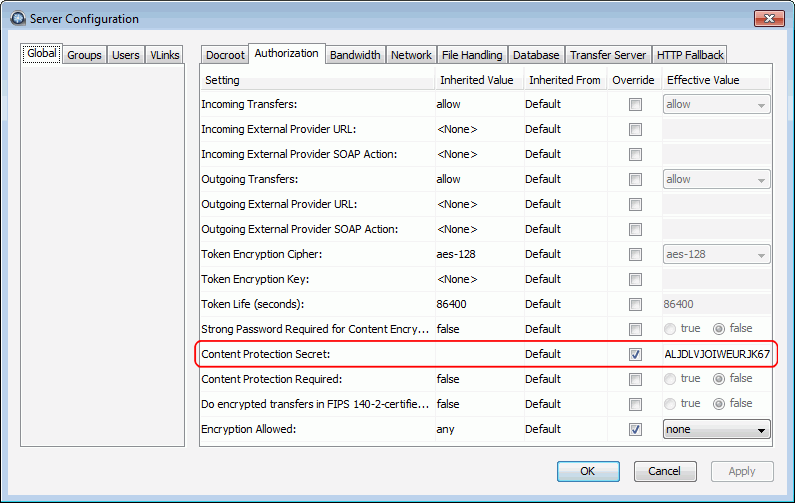
If desired, you can also set Content Protection Required and/or Strong Password Required for Content Encryption to true.