How to upgrade from IBM Aspera Enterprise Server to IBM Aspera Connect Server.
If you are upgrading a previous version of Enterprise Server to Connect Server, proceed with following steps:
-
Change the existing installation to include the Connect Server Web UI.
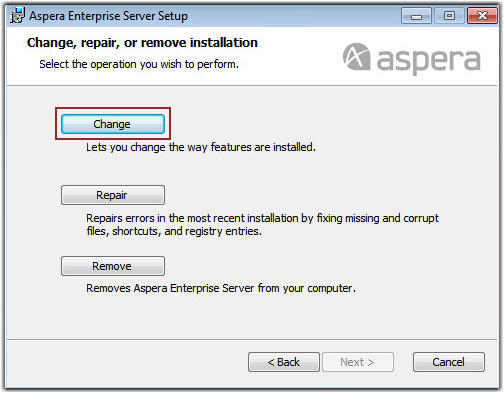
Click Computer > Uninstall or Change a Program. Double-click Aspera Enterprise Server and enter an administrative password, if requested. The Aspera Enterprise Server wizard opens. Click Next > Change.
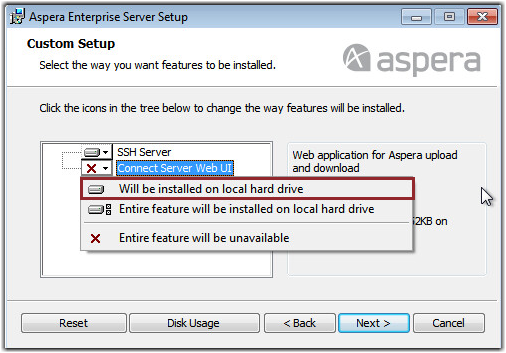
In the Custom Setup window, click Connect Server Web UI and select Will be installed on local hard drive. To proceed, click Next.
-
Import a valid Connect Server license.
To update the license key, launch the application ( ) and go to to bring up the License window.
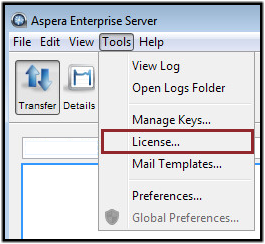
You can either click Import License File and select the license file, or click Paste License Text to paste the copied content of the license file. When finished, the license information appears in the window. Verify that it is correct and click Close.