Configure Connect Server's Web UI transfer settings by updating aspera.conf
The instructions below describe the process of configuring IBM Aspera Connect Server's Web UI transfer settings by updating aspera.conf.
-
Locate and open aspera.conf.
To configure Connect Server's Web UI transfer settings, locate aspera.conf and open it with a text editor:
C:\Program Files [(x86)]\Aspera\Enterprise Server\etc\aspera.conf
-
Additionally, open Aspera's sample Web UI configuration file.
Locate and open Aspera's sample Web UI configuration file, which can be found in the following location:
C:\Program Files [(x86)]\Aspera\Enterprise Server\etc\samples\aspera-web-sample.conf
-
In the sample Web UI configuration file, copy the <WEB> section and
paste it into aspera.conf.
Then modify the <WEB> section to fit your requirements. For example:
<CONF version="2">
...
<WEB
   SshPort = "33001"
   UdpPort = "33001"
   PathMTU = "0"
   HttpFallback = "no"
   HttpFallbackPort = "8080"
   HttpsFallbackPort = "8443"
   EnableDelete = "yes"
   EnableCreateFolder = "yes"
   AsperaServer = ""
   EnableUserSwitching = "no"

   HideRestrictedFolders = "yes"
   EnableSortByName = "false"
   EnableConnectUpdates = "yes"
/>
</CONF>
The default configuration example (above) assumes that you are using TCP/33001 as your SSH port.
The table below provides descriptions of all Web UI configuration options.
Field Description Values Default SshPort The TCP port for SSH transfer communication. integer between 1 and 65535 33001 UdpPort The UDP port for FASP file transfer. integer between 1 and 65535 33001 PathMTU Sets the maximum packet size for file transmission. When using the value "0", FASP will automatically set the appropriate value for the network within this value. integer between 296 and 10000 0 HttpFallback Use HTTP Fallback transfer when UDP-port transfer fails. yes / no no HttpFallbackPort The TCP port for HTTP Fallback transfer. integer between 1 and 65535 8080 HttpsFallbackPort The TCP port for HTTPS Fallback transfer. integer between 1 and 65535 8443 EnableDelete When set to "yes" (default), users with the appropriate permissions can delete files and folders within the Web UI. yes / no yes EnableCreateFolder When set to "yes" (default), users with the appropriate permissions can create new folders using the "New Folder" button within the Web UI. Note: The user can still upload a new folder even if "EnableCreateFolder" is set to "no."
yes / no yes AsperaServer To use this computer solely for the Connect Server Web UI (and not for file transfers), enter the IP address or host name of the transfer server machine in this field. In the case of a high-availability or clustered setup, this value should be the IP address or host name of the VIP (where the VIP/cluster service/load balancer will manage the transfer servers). Once added, Connect Server allows the user to transfer to and from the file system on the indicated transfer server machine. The IP address or host name of the transfer server machine unspecified (transfer using local machine) MinimumConnectVersion Specifies the minimum version of Connect that must be installed in order for users to be able to use Connect Server. If the minimum version is not installed, a message is displayed that indicates the minimum version required and provides a download link. This option takes the value in the format of the Aspera Connect version, for example, "3.0.0.12345". Note: The default value for this setting is also the lowest allowable value. If the value specified is below the default value, the Web UI enforces the default value.Version number 2.8.0.0 EnableUserSwitching This option enables a feature that allows a user to switch to a different user account. When set to "yes", a Change User button is added to the web page in the upper-right corner. Note that the feature only allows users to log in to a different account than the one they are exiting.
This is currently an experimental feature.
Note: On Windows Connect Server, unicode user names are not supported.yes / no no HideRestrictedFolders Hide folders that the user doesn't have permission to read. When set to "no", the user can see all folders, and may encounter error when trying to access unaccessible folders. yes / no no EnableSortByName When value is "true," files are sorted into a given order to be displayed in before being listed on the Connect Server Web UI.
Important: We recommend you keep the default setting of "false." If you browse a directory that contains numerous files, then browsing performance may be impacted due to the extra sorting that needs to occur.true / false false EnableConnectUpdates When the value is "yes," the Connect Server Web UI will display a prompt to upgrade the Connect browser plugin when an upgrade is available. When set to "no," this prompt will no longer appear, except for mandatory upgrades when the minimum version requirement for Connect is not met. This setting does not affect the installation message that appears when Connect is not installed. yes / no yes -
To secure your web server, you may want to enforce the use of HTTPS and disable HTTP.
For information on how to configure this, see the documentation for your OS and web server. On Windows, configure this with the IIS Manager. For details, see Configuring IIS for Web UI and Microsoft IIS documentation.
-
Restart Aspera HTTPD
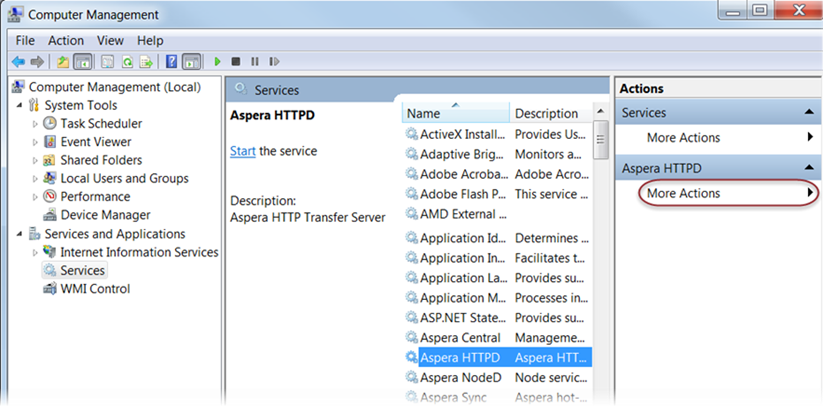
You may restart Aspera HTTPD within the Computer Management window: Control Panel > Administrative Tools > Computer Management > Services and Applications > Services. Click (highlight) Aspera HTTPD and in the right-hand panel click Aspera HTTPD > More Actions > Restart.