Linux users may update the license using the GUI or from the command
line. Instructions for both are given below.
Run Aspera Enterprise Server.
To update the license in the GUI, run the following command
as root to start the
application:
#asperascp
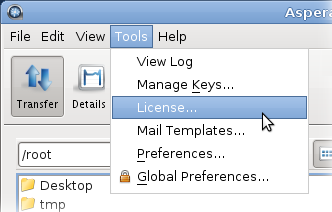
Click Tools > License to open the license window.
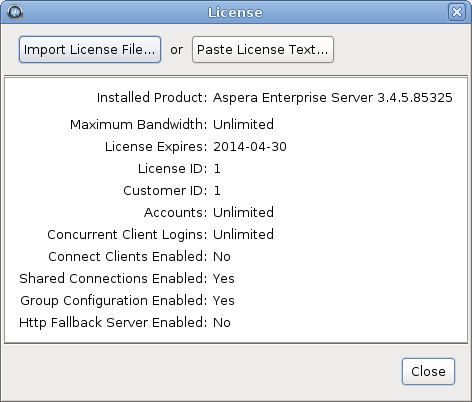
Import the license file.
You can either click the Import License File and select
the license file, or click Paste License Text to paste
the copied content of the license file. Verify that the license information that
appears is correct and click Close.
Edit the license file.
Open the following file with write permission:
/opt/aspera/etc/aspera-license
Replace
the existing license key string with the new one and save the
file.
Confirm the new license information is correct.
Run the following command to display license
information:
#ascp -A
If you are using the Node API, reload the asperanoded
service.