Exporting and Importing Connections
Connections, and optionally their passwords, can be exported and imported as a text file, and the text file can be password protected.
Note:
- If you are exporting a connection that uses keys, back up the keys manually and import separately.
- A shared connection that is exported or imported by a non-administrator is imported as a regular connection (not as a shared connection).
- Email templates are not exported with the connection.
Export Connections
To export your connection list:
- Right-click the remote server panel and click Export.
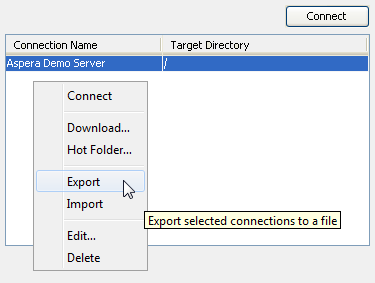
- Enter the following information:
- Destination: Enter or browse to the location on your computer where to save the file.
- Options: The passwords associated with your connections can be exported. Select if you do not want to export passwords, export passwords without obscuring the passwords (Export passwords in clear), or export encrypted passwords (Encrypt passwords).
- Password: Required if Encrypt passwords is selected. When the connections are imported, use the password to decrypt the connection passwords.
- Click OK to export your connection information to the file.
Import Connections
To import a connection list:
- Right-click the remote server panel and select Import.
- Enter the following information:
- Source file: The file with the exported connections.
- Options: Select the appropriate option, depending on how the connections were exported.
- Password: If you select the Passwords are encrypted option, enter the password that was set when the connections were exported.
- Click OK to import the connection information.
- Before deleting the source file, confirm that the import process was successful by testing your connections.