Setting Up Hot Folders
Creating a New Hot Folder
To create a new Hot Folder, launch the Aspera application as an administrator. In the file browser, go to the folder you wish to set up as the Hot Folder. Right-click the panel and select New > Hot Folder to open the New Hot Folder dialog. You can also open the New Hot Folder dialog by clicking File > New > Hot Folder.
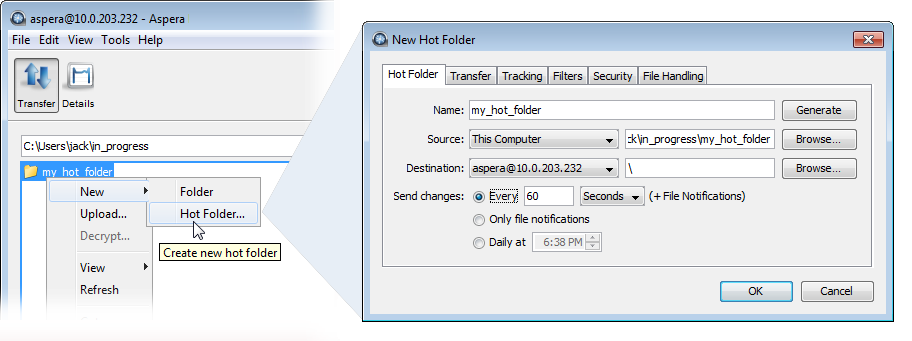
The New Hot Folder window includes the following configuration tabs:
| Tab | Description |
|---|---|
| Hot Folder | Set the source, the destination, and the synchronization interval. |
| Transfer | Set the transfer speed and transfer policy. |
| Tracking | Turn on and configure email notifications for transfer start, completion, and error. |
| Filters | Create filters to skip files that match certain patterns. |
| Security | Enable transfer encryption and content protection. |
| File Handling | Set up a resume rule, preserve transferred file attributes, and remove or move source files. |
The following tables describe the options available on each configuration tab.
Hot Folder
| Option | Description |
|---|---|
| Name | The name of the Hot Folder. Use the default name or enter your own. The default name is the name of the Windows folder. Click Generate to restore the default name. |
| Source | Specify the source for the Hot Folder. If the source is This Computer, then the Hot Folder is in push mode. |
| Destination | Specify the destination for the Hot Folder. If the destination is This Computer, then the Hot Folder is in pull mode. |
| Send Changes | Select when to synchronize. The options depend on whether the Hot Folder is in push or
pull mode:
|
Transfer
| Option | Description |
|---|---|
| Policy | Set the FASP transfer policy.
Note: If
--policy is not set,
ascp uses the server-side policy setting
(fair by default). |
| Speed | Use this option to specify the target transfer rate and minimum transfer rate. (Files will still be transferred if the available transfer rate is below the minimum). |
Tracking
| Option | Description |
|---|---|
| Send Email Notifications | Select to enable email notifications and to display configuration options; however,
notifications are not sent until they are enabled (click
Preferences on the main screen of the
application). For more information, see Configuring Transfer Notifications. Important: For Hot
Folder email notifications to work, the GUI must remain open.
|
| When (not displayed until checkbox is enabled) | Select one or more events that trigger the notification (transfer start, completion, and error). |
| To (not displayed until checkbox is enabled) | Enter the email addresses of the recipients. |
| Template (not displayed until checkbox is enabled) | Select a notification template from the drop-down list. Add, delete, edit, and preview templates by clicking Manage Templates. For more information on configuring templates, see Configuring Transfer Notifications. |
| Message (not displayed until checkbox is enabled) | Include a custom message with the notification. |
Filters
Click Add and enter the filter pattern to use to exclude files or directories from the transfer. The exclude pattern is compared with the whole path, not just the file name or directory name. As shown below, the asterisk (*) can be used to represent zero to many characters in a string, for example *.tmp matches .tmp and abcde.tmp:
| Filter Pattern | Excludes these files |
|---|---|
| *dirName | path/to/dirName, another/dirName |
| *1 | a/b/file1, /anotherfile1 |
| *filename | path/to/filename, /filename |
Security
| Option | Description |
|---|---|
| Encryption | Select the encryption cipher (AES-128,
AES-192, or AES-256) to
use for encrypting data in transit, or disable encryption by selecting
none. Aspera strongly recommends using encryption. However, encryption may decrease performance, especially at higher transfer speeds and with slower computers. |
| Content Protection | Enable client-side encryption at rest: In Push mode, select Encrypt uploaded files with a password to encrypt the uploaded files with the specified password. The protected file has the extension .aspera-env appended to the file name. In Pull mode, select Decrypt password-protected files downloaded to require entry of the decryption password when downloading encrypted files. For more information about client-side encryption at rest, see Client-Side Encryption at Rest (EAR). |
File Handling
| Option | Description |
|---|---|
| Resume | Select Resume incomplete files to enable
the resume feature. Select the file comparison method from the
When checking files for differences
dropdown menu:
Under When a complete file already exists at the destination, select an overwrite rule when the same file exists at the destination. By default, files on the destination are overwritten if different from the source. |
| File Attributes |
Note: Access, modification, and source access times cannot be
preserved for node and Shares connections that are using cloud
storage.
|
| Source Handling | Select Automatically delete source files after transfer to
delete files that transferred successfully from the source. Push mode: Select Automatically move uploaded source files to a directory after transfer and specify the location on the source machine to which they should be moved. Only a path to an existing location on the client can be specified. Only files are moved, not the parent directory structure. To preserve the directory structure, enable the --src-base option after the Hot folder is created:
Pull mode: Select Transfer source directory contents only to transfer only the contents of the directory and not the directory itself. If this option is enabled, for a source folder /folder1 containing file1 and file2 being pulled to the destination folder /destination, only file1 and file2 are transferred, not /folder1. If this option is not selected, the transfer produces /destination/folder1 (containing the two files) on the destination machine. Select Delete empty source subdirectories to remove empty subdirectories from the source once the files that they contain transfer successfully. This option is usually used to clean up the Hot Folder when source files are moved or deleted after transfer. |