Before Upgrading or Downgrading
Upgrading
- The Aspera Client installer automatically checks for an
older version of the product on your system. If an older version is found, the
installer automatically removes it before installing the new
version.
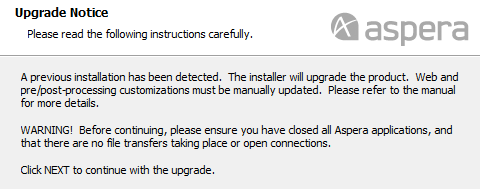
On a Windows system, the installer displays the following message when an older version of the product is detected:
- Although the installer performs your upgrade automatically, Aspera highly recommends completing the tasks below before upgrading. If you do not follow these steps, you risk installation errors or losing your former configuration settings.
- You cannot upgrade directly between different Aspera transfer products (such as from Point-to-Point to Desktop Client, or from Point-to-Point to Enterprise Server). To upgrade, you need to back up the configuration, uninstall the product, and perform a fresh install of the new version of the product.
- When upgrading from versions 2.7.6 and earlier to version 3.X on Windows, user names are now case sensitive.
Downgrading
Older installers do not check for newer versions of the application. You must prepare your machine as described below then uninstall the newer version before continuing with your downgrade.
Preparing for an Upgrade or Downgrade
-
Stop or allow to complete any FASP transfers that were initiated by the
computer that you are upgrading.
FASP transfers cannot proceed during your Aspera product upgrade.
- Stop Hot Folders by clicking
 .
. - Close the application GUI.
- Stop (and resume after upgrade) or allow to complete any ascp, A4, or Sync transfers in the command line.
- Stop Hot Folders by clicking