Configuring Transfer Token Authorization in the GUI

A transfer token authorizes specific content uploads to a destination or content downloads from a remote source. Transfer-token-based authorization is generally used for FASP transfers initiated through Aspera web applications, such as IBM Aspera Shares, Faspex, and Sharepoint, but can be used in place of SSH authentication for other types of Aspera products.

When user accounts on a transfer server are configured to require transfer token authorization, only transfers initiated with a valid transfer token are allowed to transfer to or from the server. Transfer token authorization can be set independently for incoming transfers and outgoing transfers.

Requirements:

  1. Launch the application and click Configuration.
  2. Click Users and choose a user to configure.
    Alternatively, click Groups and choose a group to configure, or click Global to configure options for all users.
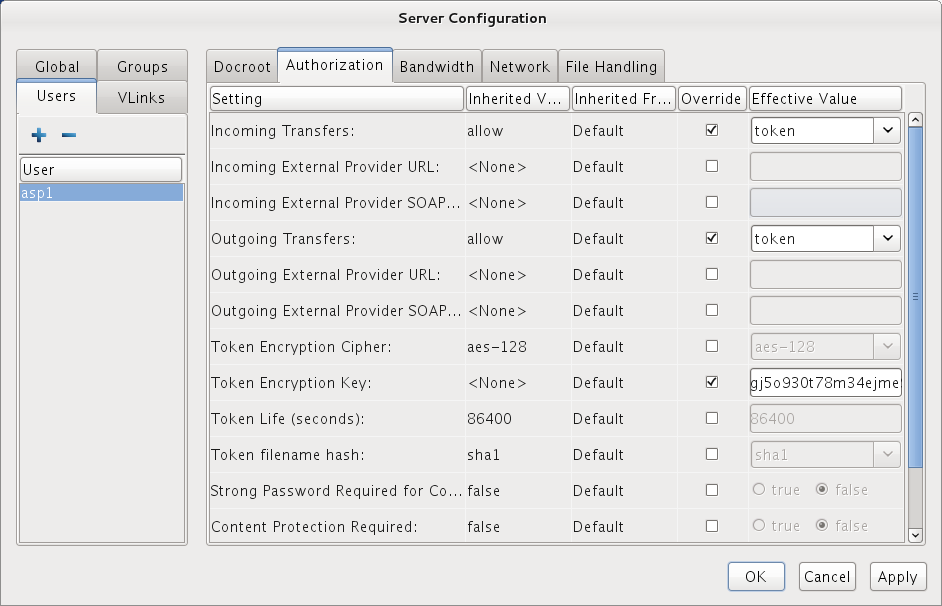
  3. In the right panel of the Server Configuration dialog, click Authorization.
  4. Set token authorization for incoming and outgoing transfers.
    Select the override boxes for Incoming Transfers and Outgoing Transfers. Under Effective Value, select token from the dropdown menu.
  5. Set the token encryption key.
    Select the override box for Token Encryption Key and enter the token encryption key. The encryption key should be a string of random characters (at least 20 recommended).
  6. Click Apply to save the changes, or click OK to save the changes and close the dialog.