Aspera FASP transport has no theoretical throughput limit. In addition to network
capacity, transfer rates can be limited by user-configured rate settings and the resources
of the local and remote machines. You can configure bandwidth usage limits and the number of
concurrent FASP transfers that are allowed by Desktop Client.
-
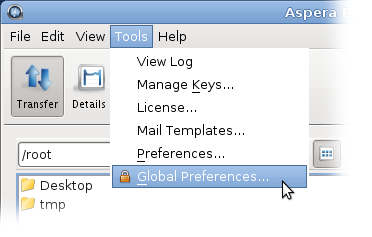
Launch the application with administrator privileges and click Tools
> Global Preferences.
-
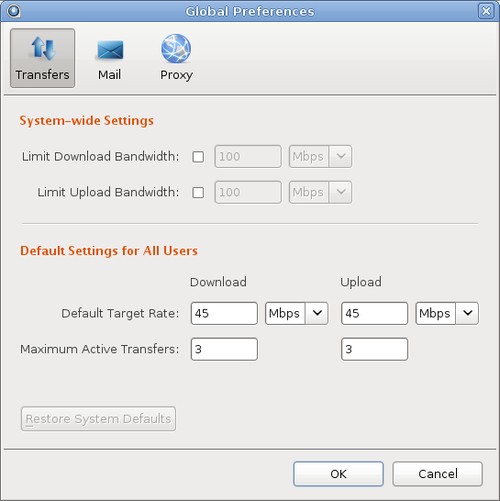
Click Transfers.
-
To limit total bandwidth usage by FASP uploads and downloads, edit
System-Wide Settings.
System-wide settings set the aggregated bandwidth cap for all FASP transfers
on this computer.
To override the default bandwidth limits, under
System-Wide Settings select the boxes next to
Limit Download Bandwidth and Limit
Upload Bandwidth and enter new values in the fields. The
global settings for download and upload bandwidth limits cannot be reset by
non-admin users. However, users can view the global limit from the
Preferences > Transfers dialog.
-
To set default target rates for all users, edit Default Target
Rate.
Non-admin users can adjust their personal default target rates above or below
the global default value.
-
To limit the number of active transfers, edit Maximum Active
Transfers.
Non-admin users can adjust their personal maximum active transfers above or
below the global default value.
-
Click OK to activate your changes.