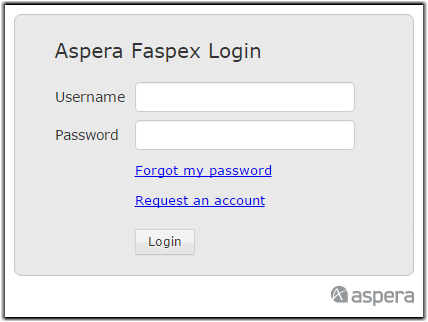
If you do not have an account and Faspex is configured to allows users to self-register, the login page displays the Request an Account link. If you do not see this link, contact your administrator.
-
Click the Request an Account link to request access to
Faspex.
-
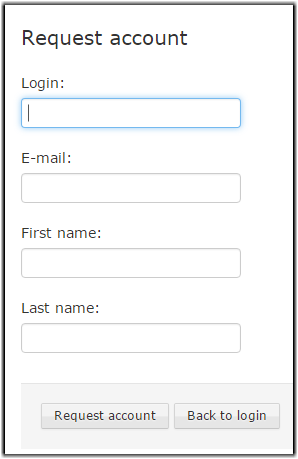
After clicking on this link, complete the following form and click the
Request an account button.
-
If prompted to do so after logging in, install the IBM Aspera Connect Browser Plug-in.
You must have the Connect installed to access the Faspex web interface. If the Connect is not detected on your system, you will be prompted to install it.

Click Download latest version and run the installer. When installation has completed, refresh your browser window to check whether or not the Connect has installed successfully.