With Hot Folders (Aspera Sync for Windows), you can monitor selected (and configured) folders for changes and automatically transfer new or modified files. Hot Folders can be used for one-way replication between two locations or simply as a way of forwarding files in your workflow. Note that Aspera Sync runs as a service in the background.
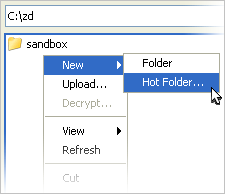
To set up the Hot Folders, use the file browser in the application ( ) to navigate into the path you wish to set up as the Hot Folder, for example, C:\zd. Right-click the panel and select to bring up the New Hot Folder window.
The New Hot Folder window includes the following configuration tabs:
| Tab | Description |
|---|---|
| Hot Folder | Set up the source, the destination, and the synchronization interval. |
| Transfer | The transfer speed and transfer policy. |
| Tracking | Turn on and configure email notification(s) for transfer start, completion and/or error. |
| Filters | Create filters to skip files that match certain patterns. |
| Security | Enable the transfer encryption and the content protection. |
| File Handling | Set up resume rule, preserve transferred file attributes, and remove source files. |
The following tables detail all options in these tabs:
- Hot Folder
-
Option Description Name The Hot Folders' name. Use the default name or enter your own Source Specify the source for the Hot Folders. Destination Specify the destination for the Hot Folders. Send Changes Select when to perform the synchronization. Use Immediate to synchronize whenever a file in the folder is changed; specify a time to synchronize at the exact time. - Transfer
-
Option Description Policy Select the transfer policy. Refer to fasp Transfer Policies. Speed Check this option to specify the transfer rate. - Tracking
-
Option Description Send Email Notifications Check this box to enable email notifications and to display configuration options. Note that notifications are not sent until they are enabled under "Preferences." Please refer to the topic Configuring Transfer Notifications for details. IMPORTANT NOTE: For hot folder email notifications to work, the GUI has to remain open.
When (not displayed until checkbox is enabled) Select one or more events that trigger the notification (transfer start, completion and/or error). To (not displayed until checkbox is enabled) Enter recipients' email address(es). Template (not displayed until checkbox is enabled) Select a notification template from the drop-down list. You may add, delete, edit and preview templates by clicking the "Manage Templates" button. Message (not displayed until checkbox is enabled) Include a custom message with the notification. - Filters
-
Click Add and enter the pattern to exclude files or directories with the specified pattern in the transfer. The exclude pattern is compared with the whole path, not just the file name or directory name. As shown below, the asterisk (*) can be used in the setting of patterns:
Examples:Symbol Name Description * Asterisk Represents zero to many characters in a string, for example *.tmp matches .tmp and abcde.tmp. Filter Pattern Matched files *dirName path/to/dirName, another/dirName *1 a/b/file1, /anotherfile1 *filename path/to/filename, /filename Note that the temporary files used by Aspera to resume incomplete files are ignored according to the resume suffix setting of the sender. For more information about the resume suffix, see File Handling.
- Security
-
Option Description Encryption When checked, fasp encrypts files while transferring. Encryption may decrease performance, especially at higher transfer speeds and with slower computers. Content Protection Two options: Encrypt uploaded files with a password encrypts the uploaded files with the specified password. The protected file has the extension .aspera-env appended to the file name; Decrypt password-protected files downloaded prompts for the decryption password when downloading encrypted files. - File Handling
-
Option Description Resume Check Resume incomplete files to enable the resume feature. In the When checking files for differences options: Compare file attributes only checks if the existing file is the same size; Compare sparse file checksums performs a sparse checksum on the existing file. Compare full file checksums perform a full checksum on the existing file. File Attributes Check Preserve file timestamps to preserve the transferred files' timestamps. Source Deletion Check Automatically delete source files after transfer to delete the successfully-transferred files from the source. Check Delete source directories to also remove the folder.