Launching the Application
To launch the desktop application, execute the following command in a terminal shell. To perform administrator tasks (such as server configuration, license updates, or configure email notification templates), run it with root permissions.
# asperascp
The Application GUI
Note: The
Configuration button shown in the screenshots below is
only enabled when the application is run as an Administrator.
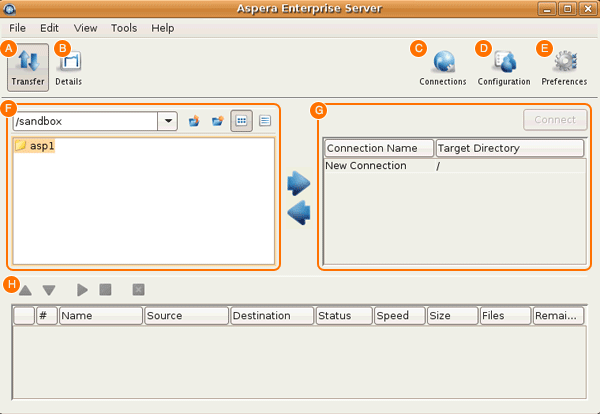
| Item | Description |
|---|---|
| A | Click Transfer to enter the transfer viewing mode. This is the default view when you launch the application, which shows the local and remote file browsers. |
| B | Select a transfer from the bottom pane and click Details to enter the transfer details viewing mode. This view shows the details of the selected transfer session, as well as the transfer control options. For more information, see Transferring Content and Managing Transfers. |
| C | Click Connections to open the Connection Manager window in which you can manage the remote endpoints. For more informations, see Managing Connections. |
| D | Click Configuration to open the Server Configuration window in which you can configure the FASP transfer settings. For more information, see Configure the Server in the GUI. |
| E | Click Preferences to set the local computer's default transfer settings, such as the FASP global bandwidth and the number of simultaneous transfers in the queue, and the SMTP server's information for transfer notifications. |
| F | Browse the local file system to view files to transfer. |
| G | When not connected, a list of the saved connections is displayed. When connected (by clicking on a Connection Name and clicking Connect), browse the remote file system. |
| H | Display previous, ongoing, and queued transfers. Manage the priority. |
The File Browser
All options in the File Browser, including the file browser's contextual menu (Mouse right-click):
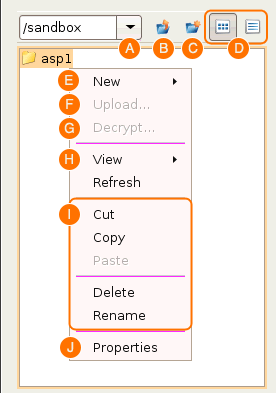
| Item | Description |
|---|---|
| A | Path indicator/selector. |
| B | Go to the parent directory. |
| C | Create a new folder. |
| D | Choose between the list views and the detail view. |
| E | Create a new folder. |
| F | View the advanced upload or download window. |
| G | Decrypt the selected file if it is encrypted with the content protection. |
| H | Choose between the detail or the list views. Refresh the folder. |
| I | Options to manipulation the selected files. |
| J | Show the selected files' properties. |