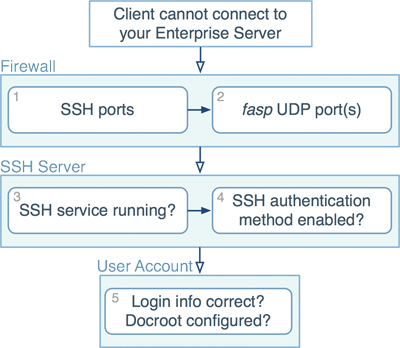
The following diagram shows the troubleshooting procedure if clients can't establish a FASP transfer connection to your Enterprise Server. Follow the instructions to identify and resolve problems:
-
Test SSH ports
To verify the SSH connection port, on the client machine, open a Terminal or a Command Prompt, and use the telnet command to test it. For example, to test connection to a computer (10.0.1.1) through a port (TCP/33001), use this command:
# telnet 10.0.1.1 33001If the client cannot establish connections to your Enterprise Server, verify the port number and the firewall configuration on your Enterprise Server machine.
-
Test UDP ports
If you can establish an SSH connection but not a FASP file transfer, there might be a firewall blockage of FASP's UDP port. Please verify your UDP connection.
-
Verify SSH service status
If there is no firewall blockage between the client and your Enterprise Server, on the client machine, try establishing a SSH connection in a Terminal or a Command Prompt: (Enterprise Server address: 10.0.1.1, TCP/33001)
# ssh aspera_user_1@10.0.1.1 -p 33001If the SSH service runs normally, the client should see a message prompting to continue the connection or for a password. However, if you see a "Connection Refused" message, which indicates that the SSH service isn't running, review your SSH service status. Ignore the "permission denied" message after entering the password, which is discussed in next steps.
-
Applied authentication method is enabled in SSH
If you can establish a SSH connection, but it returns "permission denied" message, the SSH Server on your Enterprise Server may have password authentication disabled:
Permission denied (publickey,keyboard-interactive).
Open your SSH Server configuration file with a text editor:
/etc/ssh/sshd_configTo allow public key authentication, add or uncomment the PubkeyAuthentication yes. To allow password authentication, add or uncomment PasswordAuthentication yes. Here is a configuration example:
...
PubkeyAuthentication yes
PasswordAuthentication yes
...
To reload SSH service, execute the following command:
OS Version Instructions RedHat $ sudo service sshd restart
Debian $ sudo /etc/init.d/ssh restart
-
Verify that the user credentials are correct, and has sufficient access
permissions to its docroot
To make sure that the client can establish a SSH connection to your Enterprise Server, and has correct system user credentials, use this command on the client machine: (Connect Server address: 10.0.1.1, login: aspera_user_1/aspera)
$ ssh aspera_user_1@10.0.1.1 -p 33001
aspera_user_1@10.0.1.1's password:
Enter the user's password when prompted. If you see "Permission denied" message, you may have a wrong user credentials, or the user has docroot configured and doesn't have sufficient access permissions to access it. Refer to Setting Up Users or Setting Up Transfer Users (Terminal) for instructions about setting up the user account, and review the user's docroot directory's permissions.
If you still encounter connection problems after going through these steps, contact Technical Support.