Changing and Securing the TCP Port
Generally, SSH servers listen for incoming connections on TCP Port 22. As such, Port 22 is subject to countless, unauthorized login attempts by hackers who are attempting to access unsecured servers. An effective deterrent is simply to turn off Port 22 and run the service on a seemingly random port above 1024 (and up to 65535). To standardize the port for use in Aspera transfers, Aspera recommends setting the TCP port to 33001.
The OpenSSH suite included in the installer uses TCP/22 as the default port for SSH connections. Remote Aspera clients attempt to establish an SSH connection with the server on port 33001. However, if the connection fails, the client retries the connection on port 22. Aspera recommends opening TCP/33001 and disabling TCP/22 to prevent security breaches of your SSH server.
- Open TCP/33001 and keep TCP/22 open until users are notified they should switch to TCP/33001.
- Once users are notified, block TCP/22 and allow traffic only on TCP/33001.
Prerequisites:
- Before changing the default port for SSH connections, verify with your network administrators that TCP/33001 is open.
- Before closing port TCP/22, notify users of the change.
Aspera recognizes that disabling the default SSH connection port (TCP/22) may affect your client users. When you change the port, ensure that you advise your users on how to configure the new port number, from the GUI (if available and used) and from the command line.
GUI: To change the SSH port in Desktop Client, click Connections and select the entry for the server whose ports are changing. On the Connection tab, click Show Advanced Settings and enter the SSH port number in the SSH Port (TCP) field.
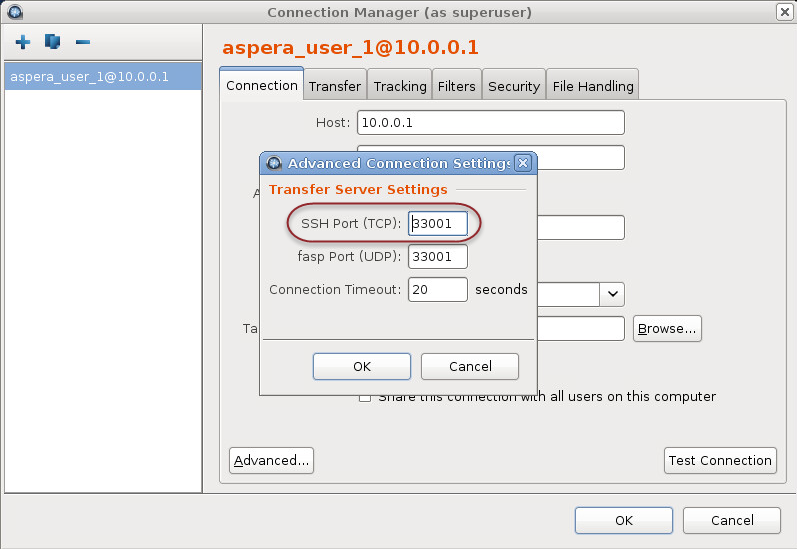
Command line: Clients running FASP transfers from the command line can specify the port by using the -P 33001 option.
The following steps require root privileges.