The following instructions explain how to configure a share (essentially a directory on a node) within the Shares application. These instructions assume that you have already installed the Shares application and Enterprise Server v3.0+ on your local machine (along with the appropriate licenses), and have followed the instructions in the topic Node Configuration to create at least one node. Before you continue, make sure that you have the following information available:
- The name of the node that you would like to put the share on.
- The node directory that you would like to set up as the share.
-
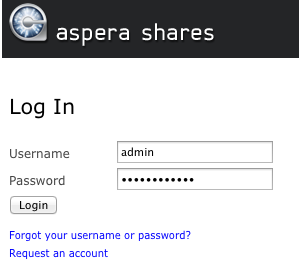
If you have not already done so, log into the Shares application with your
admin username and password.
On the computer that has the Shares application installed on it, launch your web browser and go to https://shares-ip-address/. Log in with your admin username and password.
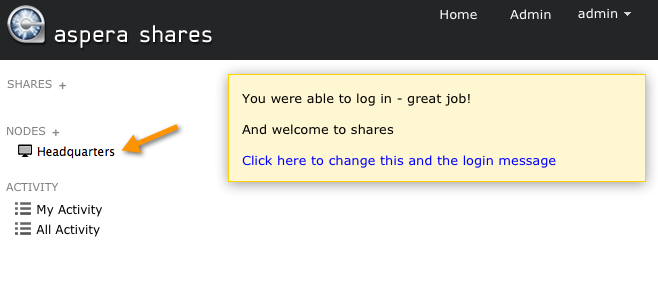
Once logged in, you will arrive at your Home screen. Note that the example below assumes that you have already set up a node (per the topic Node Configuration).
-
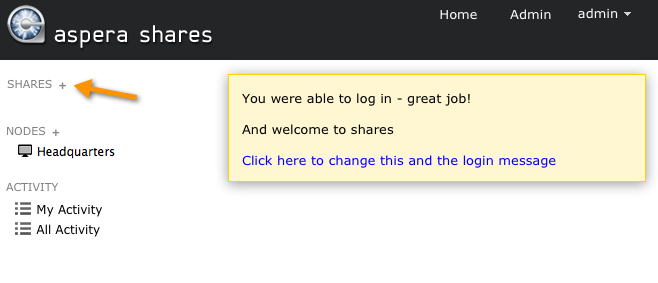
On the Home screen, click the SHARES
+ button to add a new share and complete the
New Share configuration form.
You can quickly add a new share by clicking the SHARES + button on your Home screen.
When the New Share configuration screen appears, complete the form fields with the information you collected at the beginning of this exercise. Below is a description of each field, along with example values.
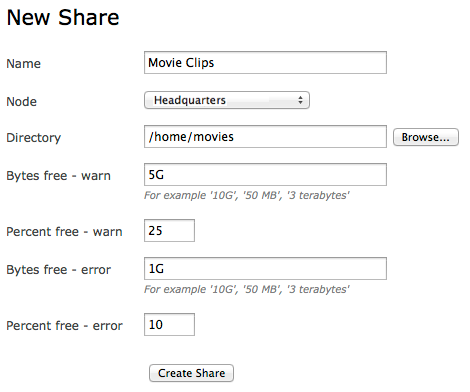
Field Description Sample Value Name The name of the share is simply a description, which means that multiple shares can also have the same name. "my first share" Node Select a node from the drop-down list. This drop-down list is automatically populated with nodes that you have previously configured (refer to Node Configuration). In our example, the node is called "my first node." We will select this name from the drop-down list. Directory Once you select a node from the drop-down list above, you will be able to browse its directories using the Browse... button. If you are not able to browse the node's directories, please check your node configuration. When you click the Browse... button, you will be prompted to select a directory in the pop-up window. Here, you have several options:
- You can perform a simple search for a directory by inputting it into the name field and clicking Search.
- You can perform an advanced search by clicking the Advanced link, and inputting your criteria.
- You can sort the directory list by type, size, size descending, last modified and last modified descending.
- You can select a radio button next to the directory that you would like to be the share. After clicking the corresponding radio button, click the Select button.
We are going to make the "documents" directory our share on this node. Bytes free - warn If you would like to receive a warning message when the share has equal to or less than a certain number of storage bytes free, then enter that number into this field. You can input the number as G, MB, terrabytes and bytes. 5G Percent free - warn If you would like to receive a warning message when the share has equal to or less than a certain percent of its storage free, then enter that percentage into this field. 25% Bytes free - error If you would like to receive an error message when the share has equal to or less than a certain number of storage bytes free, then enter that number into this field. You can input the number as G, MB, terrabytes and bytes. 1G Percent free - error If you would like to receive an error message when the share has equal to or less than a certain percent of its storage free, then enter that percentage into this field. 10% -
Save and confirm.
After inputting the share details, click the Create Share button. If your share has been successfully created, it will appear under the Shares section on your Home page.
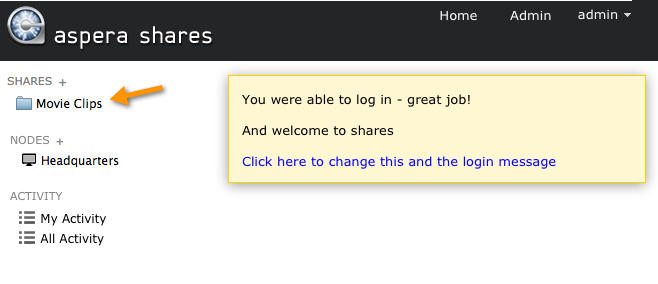
From here, you can perform multiple actions.
- Click the share's name to browse files on the share.
- Use the drop-down menu to the right of the share name to browse, view activity, make comments, edit, view authorizations, view admin activity or delete the share.
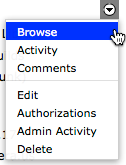
For detailed information on these functions, please refer to the topic "Share Functions".