| Installation and Upgrades | |
To install Enterprise Server, log into your computer with root permissions, and follow the steps below.
http://downloads.asperasoft.com/en/downloads/1
If you need help determining your firm's access credentials, contact your Aspera account manager.
| OS | Commands |
|---|---|
| RedHat, zLinux, CentOS |
$ rpm -Uvh aspera-entsrv-version.rpm |
| Debian |
$ dpkg -i aspera-entsrv-version.deb |
# asperascp
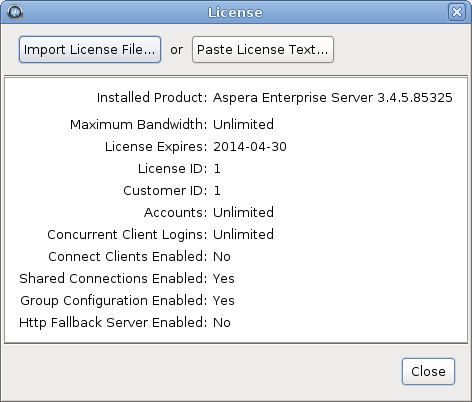
If this is a fresh install, an Enter License window appears. Either click Import License File and select the license file, or click Paste License Text to copy-and-paste the license file's content. The license information will appear in the window. Verify that it is correct and click Close.
/opt/aspera/etc/aspera-license
Copy and paste your license key string into it, then save and close the file. To verify the license information, run the following command:
$ ascp -A
If you are updating your product license after the installation, see Updating the Product License.
To allow public key authentication, set PubkeyAuthentication to yes. To allow password authentication, set PasswordAuthentication to yes, for example:
... PubkeyAuthentication yes PasswordAuthentication yes ...
Save the file then run the following to reload SSH:
RedHat
$ sudo service sshd restart
Debian
$ sudo /etc/init.d/ssh restart
To further secure your SSH Server, see Securing Your SSH Server.
# /opt/aspera/bin/asrun send -g
The output will look similar to the following:
[asrun send] code=0, body={"services":[{"id":"52ca847a-6981-47e1-9f9b-b661cf298af1","configuration":{"enabled":true,"run_as":{"user":"root"},"type":"WATCHD"},"state":"RUNNING","state_changed_at":"2016-10-20T19:14:34Z"},{"id":"root","configuration":{"enabled":true,"run_as":{"user":"root"},"type":"WATCHFOLDERD"},"state":"RUNNING","state_changed_at":"2016-10-20T00:11:19Z"}
In the resulting output, find the IDs for the Watch Service and Watchfolder instances. You can identify the asperawatchd service by searching for the string "type":"WATCHD" and, before this entry in the output, locate the string following "id". You can identify the asperawatchfolderd service by searching for the string: "type":"WATCHFOLDERD". The ID for the asperawatchfolderd service is generally the name of the user running the service.
To disable the services, run the following command for both the asperawatchd service id and the asperawatchfolderd service id:
# /opt/aspera/bin/asrun send --disable watch_service_id
For example, using the output shown above:
# /opt/aspera/bin/asrun send --disable 52ca847a-6981-47e1-9f9b-b661cf298af1 # /opt/aspera/bin/asrun send --disable root
The first command disables the Watch Service instance and the second disables the Watchfolder instance.
# /etc/init.d/asperanoded stop
#/opt/aspera/bin/asredis -p 31415 FLUSHALL
# cat appendonly.aof | /opt/aspera/bin/asredis --pipe -p 31415
# /etc/init.d/asperanoded start
# /opt/aspera/bin/asnodeadmin --db-update
# /opt/aspera/bin/asuserdata -v