Administrators can create Shares local groups, in which all users who belong to the group will have the same Shares access permissions and will belong to the Local Database (rather than a directory service). To add a new local group, log in to Shares and go to .
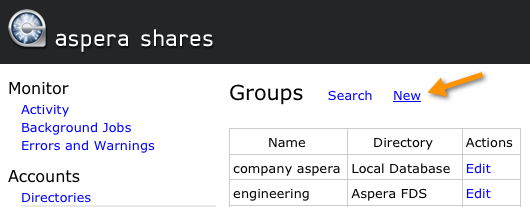
You will first be prompted to input the new local group's Name.
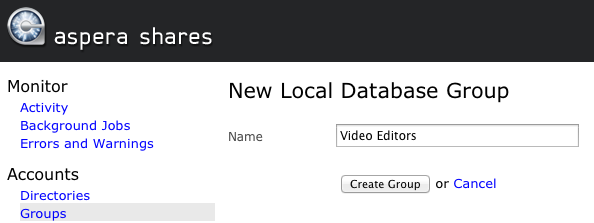
Once you create the local group under its new name, you will be directed to the Group screen, which displays following six tabs:
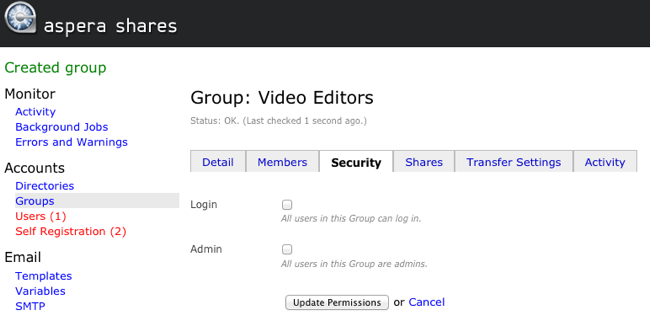
From this screen, you can configure specific settings for your new local group.
| Tab | Description |
|---|---|
| Detail | Update the local group's name, or delete the group from the Shares application. 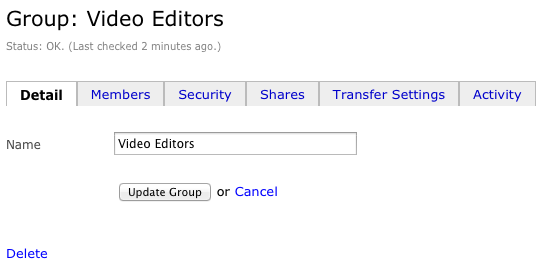 |
| Members | Add members to the local group by selecting local users from the drop-down list. Note that you will only see local users who have been added to Shares (e.g. the Shares admin or other users that you have set up through the Shares UI). IMPORTANT NOTE: You will not be able to add DS users to a local
group; only local users. You may configure DS groups by going to the Shares Directories
screen (viewable via ).
After adding a member to your local group, you may click the Edit link to modify the user's settings or Remove to delete them from the group (but not from the Shares application). 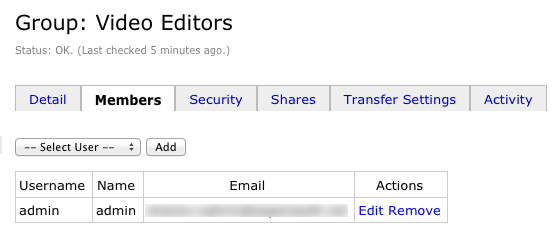 When you click a user's Edit link, you will be taken to the individual user's configuration page. Please refer to the topic Configuring Local Users for details on modifying a local user's settings. |
| Security | This tab allows you to configure specific security settings for all members of the group, including whether or not all members of the group can log into Shares, as well as if all the groups are administrators.
To configure users' security settings from their individual account pages, please refer to the topic Configuring Local Users for details. 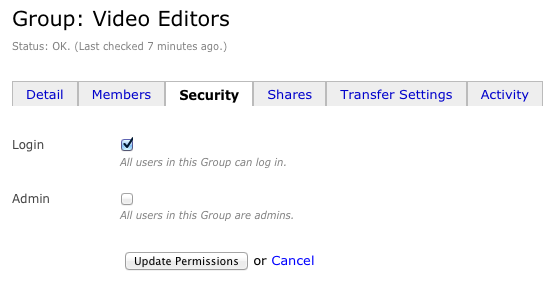 |
| Shares | Click the Add Share link to authorize specific shares for the members of this group to access. 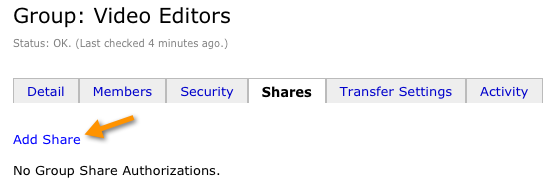 Upon doing so, you will be provided a list of nodes and shares that are currently configured in your Shares application, along with an Authorize link. 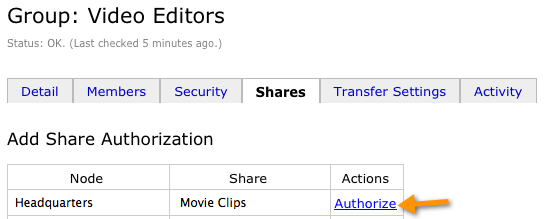 After authorizing a share, you can modify the group's permissions for browsing, transferring and performing file operations within it. Note that the default permission is browse only. To edit these permissions or de-authorize the group's access to the share, click the edit link. 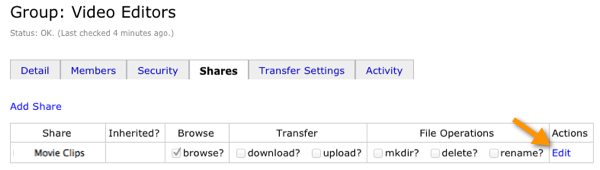 From here, select (checkmark) permissions that group members have for the authorized share. For example, the video editors in our office example are allowed to browse, download and upload video content; however, they cannot perform any file operations within the share. After modifying your settings, click the Update button. You may de-authorize access to this share by clicking Delete. 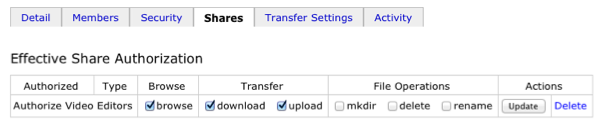 |
| Transfer Settings | Implement transfer settings/restrictions specifically for members of this group. In doing so, you will be overriding Share's app-wide transfer settings just for this group. To configure transfer settings just for this group, start by clicking the Override these settings button (which will enable the input boxes). 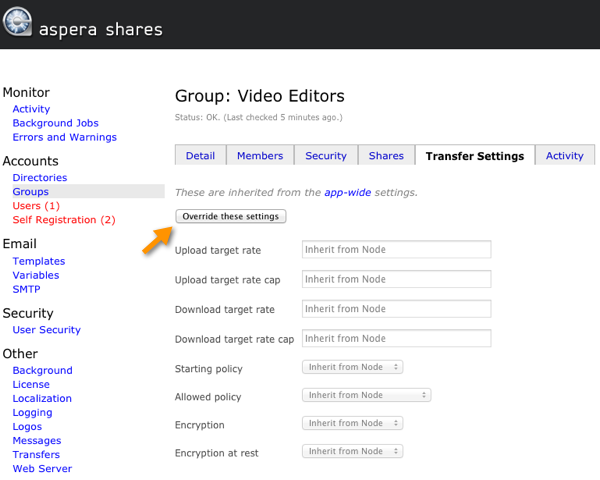 Now, you can configure your own transfer settings for this group. 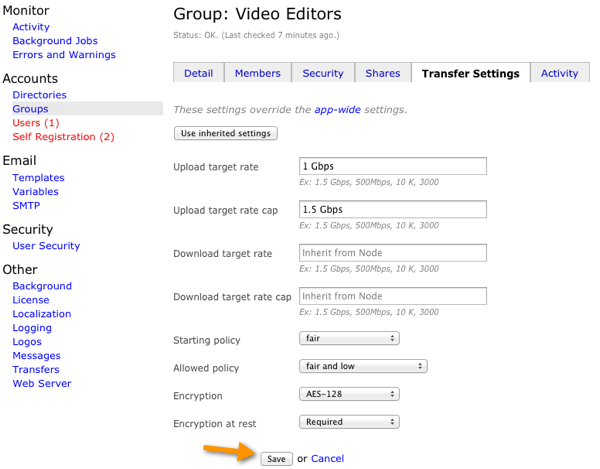 Transfer settings include the following:
Click the Save button to keep your new settings. You may also click the Use Inherited Settings button to return to the app-wide transfer configuration. |
| Activity | View and search for activity by members of this group. 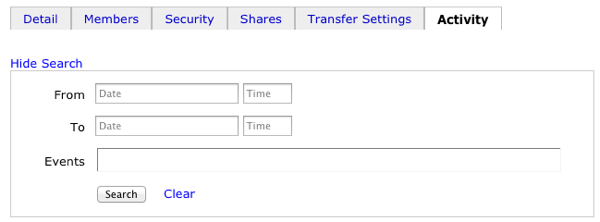 |